
O What are Form fields?
Fields are the building blocks of Forms in Good Solutions. Each field represents a question, instruction, or piece of information that Operators interact with when completing a Form.
By combining different field types, you can create anything from a simple checklist to a detailed quality inspection.
Step 1: Click Add Field to add a new field.
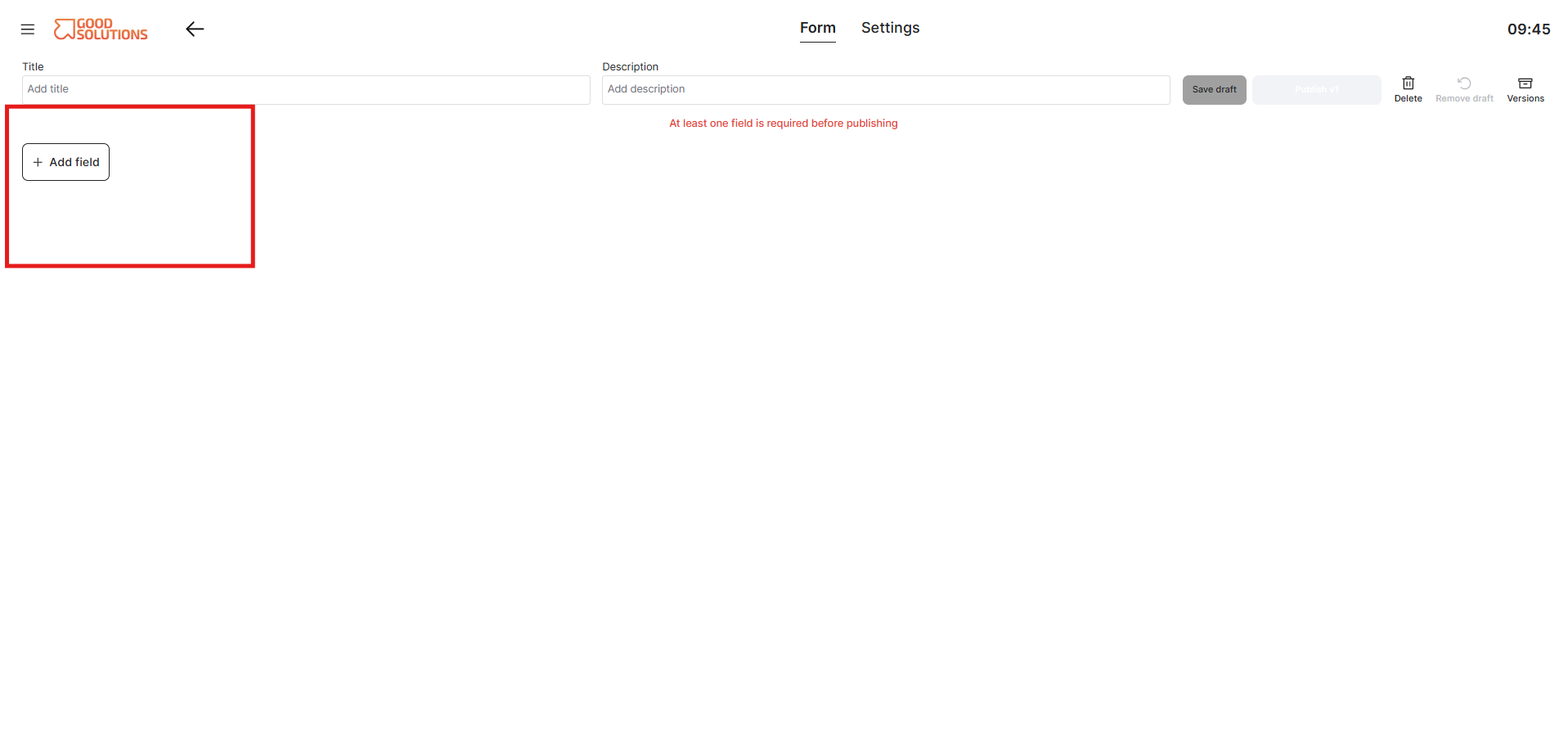
Step 2: Choose a field type
Good Solutions offers different field types depending on the information you want to collect.
| Field type | Description | Example |
|---|---|---|
| Text Input | Allows Operators to enter written information or comments. | Describe any issues found during inspection. |
| Integer | Collects whole numbers. | How many defective products were found? |
| Decimal | Collects numerical values with decimals. | What is the measured temperature? |
| True / False | Allows Operators to answer a yes/no question. | Is the safety guard correctly installed? |
| Multiple Choice | Allows Operators to select from predefined answer options. | Select the inspection result: Pass, Fail, or N/A. |
| Information / Instructions | Displays guidance or information to help Operators complete the Form. | Check that the machine is switched off before inspection. |
| Image | Allows users to access an image to guide them | An image of a correctly calibrated machine tool |
| Document | Allows users to access documents relevant to the Form context | Instruction manual for preparing an article for production |
| Operator | Allows users to highlight which operator performed the form entry | Quality inspection performed by: |
Tip: Choose the field type that best matches the information you need. For some contexts, quantitative data is appropriate; in other contexts you want to capture the insights that the operator knows and a text field is more appropriate.
Step 3: Configure your field
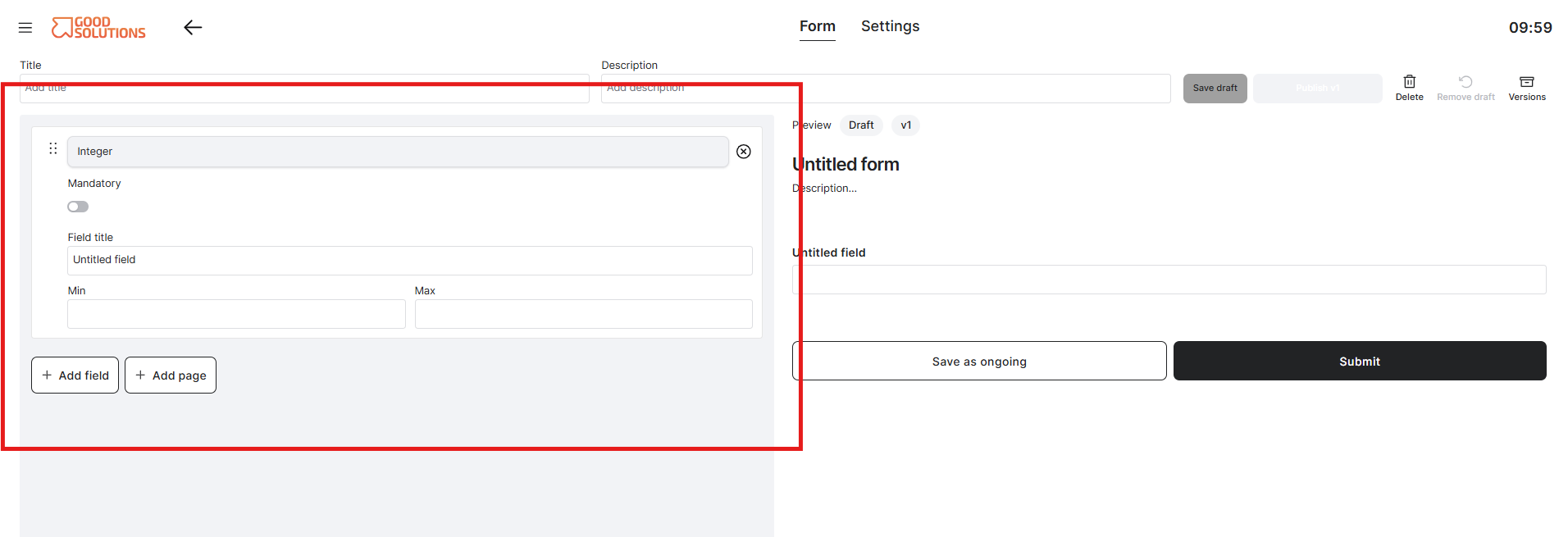
Once you have selected a field type, you can configure its properties.
Depending on the field type, you can:
- Enter a label: Write the question or title that Operators will see.
- Add instructions: Provide additional guidance on how to answer the question.
- Make the field required: Specify whether Operators must answer the question before completing the Form.
- Configure answer options: For Multiple Choice fields, define the available answers.
For example, if you are adding a Decimal field to measure temperature, you could configure:
- Question: What is the operating temperature?
- Instructions: Enter the measured temperature in °C.
- Required: Yes
- Deviation: Temperature below 18°C or above 22°C.
This helps Operators understand what information is expected and makes it possible to identify measurements outside acceptable limits.
Step 4: Add more fields
Continue adding fields until your Form contains all the questions needed for the task.
Arrange your questions in a logical sequence that reflects how Operators perform their work. Re-arrange them using drag-and-drop.
For example, a quality inspection Form might include:
- Is the equipment safe to operate? (True / False)
- What is the measured temperature? (Decimal)
- How many defective products were found? (Integer)
- What is the inspection result? (Multiple Choice)
- Additional observations (Text)
Tip: Keep Forms focused and avoid unnecessary questions. Short, clearly structured Forms are easier for Operators to complete consistently.
Step 5: Review your changes
When you have finished adding fields:
- Review the questions and their settings.
- Check that required fields and answer options are configured correctly using the live preview on the right hand side of the page.
If you are editing an already published Form, your changes are saved as a draft until you publish the updated version. Operators can continue using the existing published version in the meantime.
Once published, the updated Form becomes available in Operator Tools according to its configuration.