
What are multi-page Forms?
Multi-page Forms allow you to divide a Form into separate pages, each containing its own set of fields and questions.
Instead of presenting all questions on one long page, you can group related questions into logical sections. This makes Forms easier to navigate and helps Operators focus on one part of a task at a time.
Multi-page Forms are particularly useful for:
- Quality inspections: Separate checks for materials, measurements, and final inspection.
- Machine startup procedures: Organize safety checks, equipment inspections, and production readiness.
- Maintenance checklists: Divide inspections into mechanical, electrical, and operational checks.
- Safety inspections: Group questions by equipment, work area, or safety category.
Step 1: Open the Form editor
- Navigate to Forms in Good Solutions Web.
- Create a new Form or open an existing Form.
- Select the Form tab to access the Form editor.
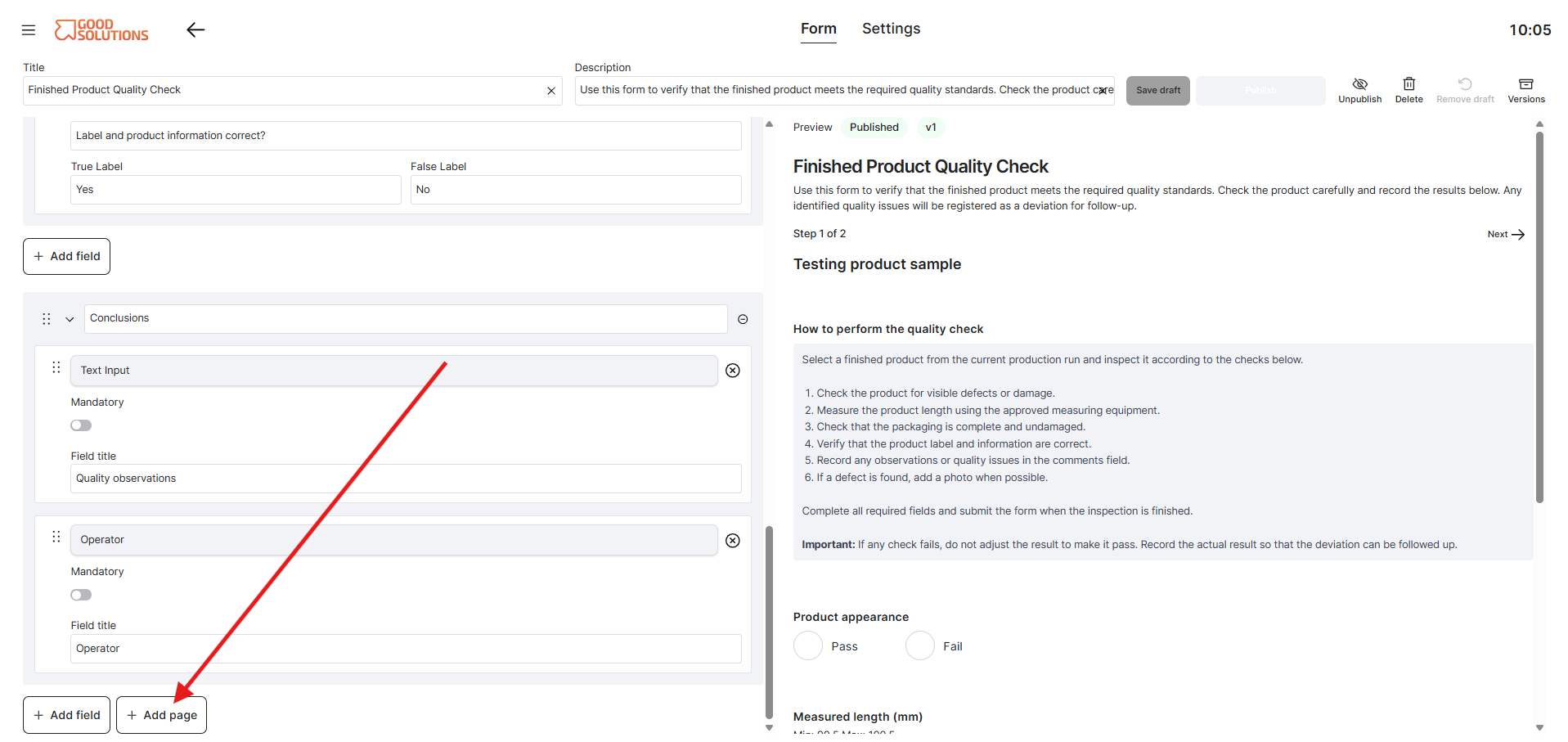
Step 2: Add a new page
- Find the option to add a page in the Form editor.
- Click Add Page.
- Give the page a clear and descriptive name, such as Safety Checks or Quality Inspection.
- Add the fields and questions that belong to that page.
Each page can contain different field types, including text, numbers, True/False questions, and Multiple Choice questions.
Tip: Use page names that describe the task or activity. This helps Operators understand where they are in the Form.
Step 3: Organize your Form into sections
Continue adding pages until your Form is divided into logical sections.
For example, a Machine Startup Checklist could contain three pages:
Page 1: Safety Checks
- Is the emergency stop functioning correctly?
- Are all safety guards installed?
- Is the work area clear of obstacles?
Page 2: Machine Inspection
- Are there any visible signs of damage?
- Is the lubrication level acceptable?
- What is the current operating temperature?
Page 3: Production Readiness
- Are the correct materials available?
- Is the machine configured for the correct article?
- Is the machine ready to start production?
This structure guides Operators through the procedure step by step.
Step 4: Arrange pages and fields
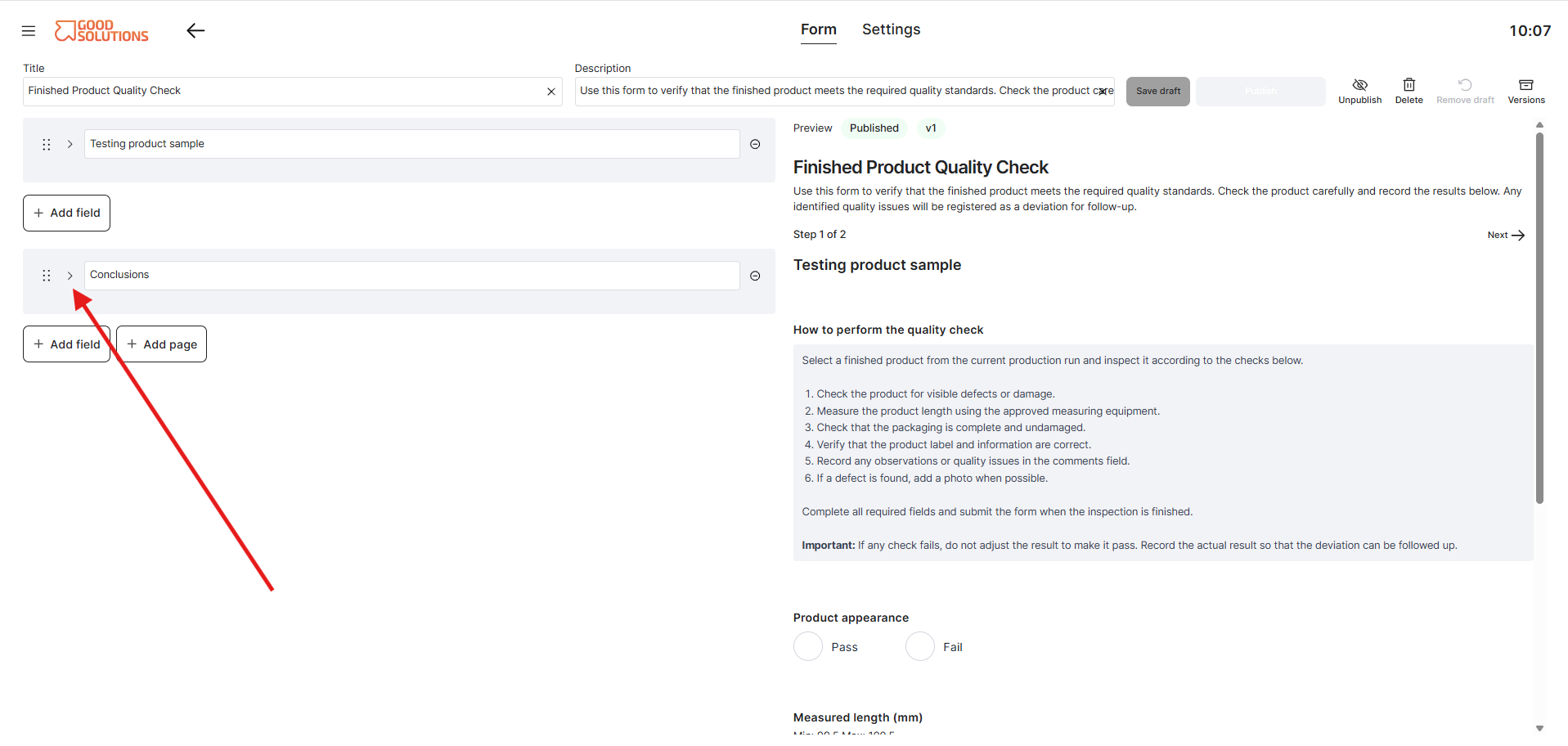
Review the order of your pages to ensure they follow the natural sequence of the task. You can collapse a page so you do not need to see every field on a page when re-arranging them.
Within each page, arrange the fields so that related questions appear together.
Consider the following recommendations:
- Keep each page focused on one activity or subject.
- Avoid placing too many questions on a single page.
- Use clear page names and field labels.
- Include instructions where additional guidance is needed.
- Make important questions mandatory when appropriate.
A well-organized Form reduces unnecessary scrolling and makes it easier for Operators to complete the task correctly.
How Operators use multi-page Forms
When Operators open a multi-page Form in Operator Tools, they can work through the different pages to complete the required questions.
The page structure helps them follow the intended sequence of the procedure and makes longer Forms easier to manage.
Once the Form has been completed and submitted, the answers are stored in Good Solutions and can be reviewed through Forms reporting.
Tips for creating effective multi-page Forms
- Group related questions: Keep questions about the same activity on the same page.
- Follow the workflow: Arrange pages in the order Operators perform the tasks.
- Keep pages manageable: Avoid creating unnecessarily long pages.
- Use descriptive names: Make it easy to understand the purpose of each page.
- Provide instructions: Help Operators understand what is expected at each stage.