
What are Documents in Operator Tools?
The Documents tab in Operator Tools provides quick access to important documents and instructions needed during production.
Documents can include:
- Work instructions: Step-by-step guidance for production activities.
- Technical drawings: Drawings and specifications for Articles being manufactured.
- Setup instructions: Information about machine setup and changeovers.
- Quality instructions: Requirements and procedures for quality inspections.
- Safety documents: Safety guidelines and procedures.
- General documents: Other useful information, such as company procedures and handbooks.
Documents in Good Solutions are links to files or resources stored in your organization's existing document systems. This means you can access relevant information directly from Operator Tools without having to search for it elsewhere.
Step 1: Open the Documents tab
- Open Operator Tools in Good Solutions.
- Select the relevant Measure Point.
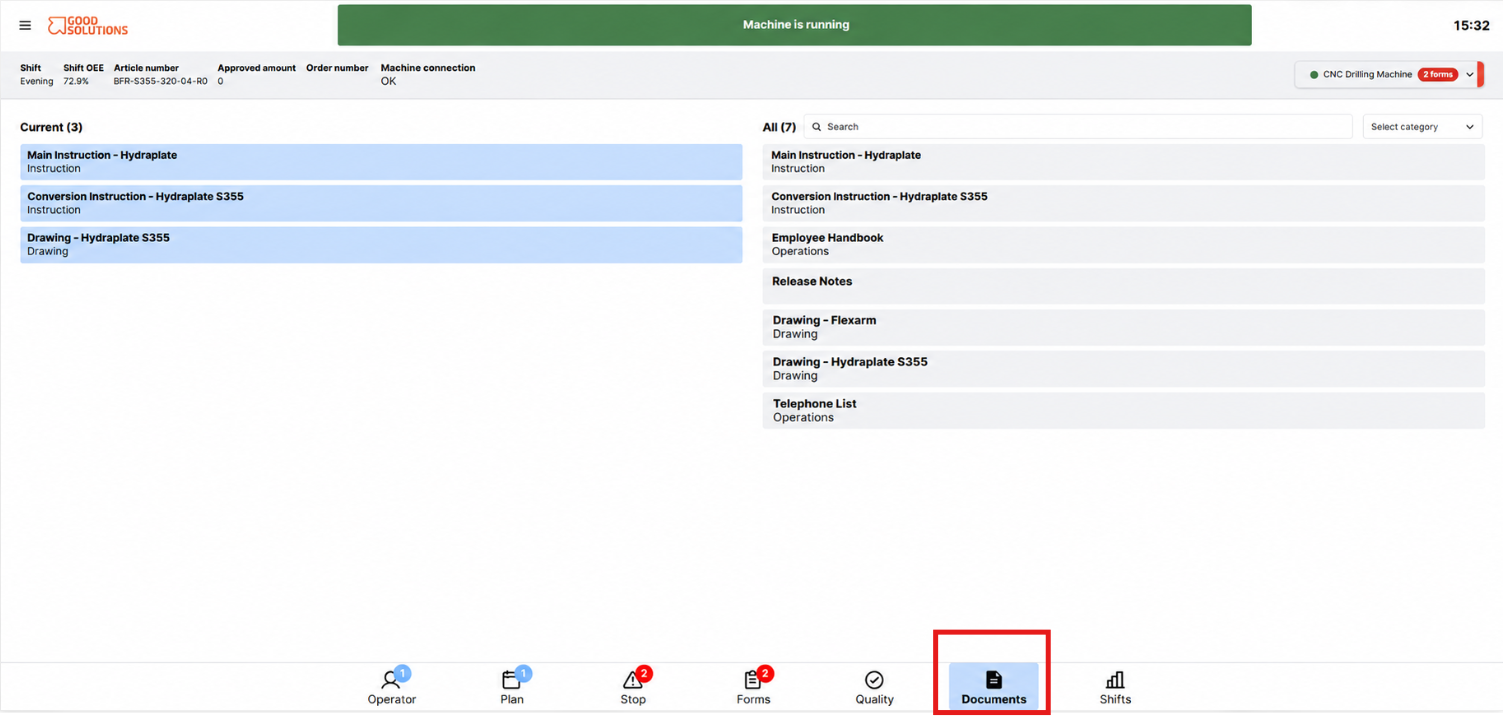
- Click Documents in the bottom navigation menu.
The Documents tab displays two sections:
- Current: Documents relevant to your current production.
- All: All Documents available for the selected Measure Point.
Step 2: Find Documents under Current
The Current section displays Documents associated with the Article or Order currently being produced at the selected Measure Point.
For example, if you are manufacturing a specific Article, the Current section might show:
- Main production instructions for the Article.
- Machine setup instructions.
- Technical drawings for the product.
These Documents are automatically displayed based on the current production context, helping you find the information you need without searching through unrelated files.
Each Document displays its name and category, making it easier to identify the correct information.
Tip: Start with the Current section when you need instructions or drawings for the Article currently being manufactured.
Step 3: Browse all available Documents
The All section displays the Documents available for the selected Measure Point, including documents that are not specifically associated with the current Article or Order.
This may include:
- General work instructions.
- Technical drawings for other Articles.
- Safety procedures.
- Employee handbooks.
- Other production-related documentation.
The All section is useful when you need information that is not directly related to the current production run.
Step 4: Search for a Document
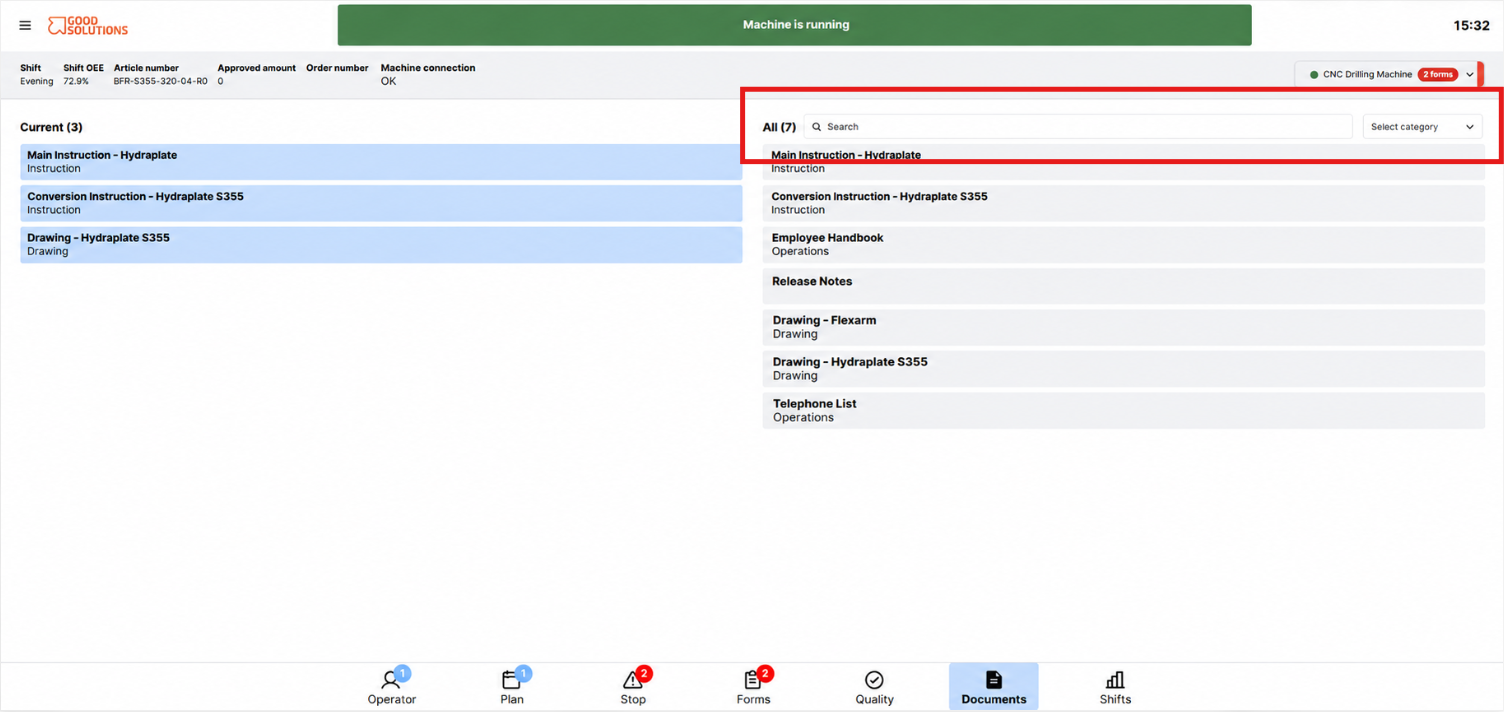
If you are looking for a specific Document, use the search function in the All section.
- Click the Search field.
- Enter the name of the Document or a relevant keyword.
- Review the matching Documents.
- Select the Document you want to open.
For example, you could search for Drawing to find technical drawings or enter an Article name to locate related instructions.
Tip: Use specific keywords to narrow down the results and find the correct Document more quickly.
Step 5: Filter Documents by category
You can also filter the All section to display Documents belonging to a particular category.
- Click Select category.
- Choose the category you want to view.
- Review the Documents matching your selection.
For example, selecting a category such as Drawing allows you to focus on technical drawings rather than browsing all available Documents.
Categories help organize information and make it easier to locate the right type of Document.
Step 6: Open a Document
To access a Document:
- Find the Document in the Current or All section.
- Click the Document name.
- Good Solutions opens the linked Document or resource.
Depending on where the Document is stored, it may open in a new browser tab or in the connected document system.
You can then review the instructions, drawings, or other information needed for your work.
Important: Good Solutions provides links to Documents rather than storing the files themselves. Access to a Document may depend on the permissions configured in the external system where it is stored.
Understanding Current vs. All Documents
| Current Documents | All Documents |
|---|---|
| Shows Documents relevant to the current Article or Order. | Shows all Documents available for the selected Measure Point. |
| Automatically adapts to the current production context. | Provides a broader library of available Documents. |
| Ideal for finding instructions and drawings needed for the current production run. | Ideal for finding general procedures or other reference material. |
For example, when an Operator starts producing a new Article, the Current section can display the instructions and drawings associated with that Article.
The All section remains available for accessing other Documents associated with the Measure Point.