
What is the Forms Report?
The Forms Report provides an overview of Forms that have been started or triggered in Good Solutions.
It allows Production Managers and other authorized users to monitor Form completion, review answers submitted by Operators, and follow up on inspections, quality checks, and other production procedures.
The report helps you:
- Monitor Form completion: See which Forms are ongoing, completed, delayed, or expired.
- Review Form submissions: Access questions, answers, and other information recorded by Operators.
- Identify deviations: Find Forms containing answers that do not meet defined requirements.
- Track production activities: See which Measure Point, Article, Order, and Shift each Form is associated with.
- Ensure traceability: Review who completed a Form, when it was triggered, and which Form version was used.
Step 1: Open the Forms Report
- Log in to Good Solutions Web.
- Navigate to Reports in the main menu.
- Select Forms Report.
The report displays a table containing Forms associated with your production environment.
Each row represents an individual Form instance, allowing you to review its status and associated production information.
Step 2: Understand the Forms overview
The Forms Report contains a detailed table showing information about each Form.
The following columns are available:
| Column | Description |
|---|---|
| Last saved | The date and time when the Form was last saved or updated. |
| Form name | The name of the Form, such as Finished Product Quality Check. |
| Status | The current status of the Form, such as Ongoing or Done. |
| Initiated by | Indicates how the Form was initiated, such as manually or through an automatic Trigger. |
| Measure Point | The machine or production Measure Point associated with the Form. |
| Article | The Article associated with the Form, when applicable. |
| Order | The production Order associated with the Form, when applicable. |
| Shift | The production Shift associated with the Form. |
| User email | The email address of the user associated with the Form submission. |
| Time triggered | The date and time when the Form was initiated or triggered. |
| Time completed | The date and time when the Form was completed. |
| Form version | The published Form version used, such as V1 or V2. |
Some columns may display Not available when the corresponding information does not exist.
For example, an Ongoing Form will not have a completion time until it has been submitted.
Sorting the table
The Forms Report allows you to sort columns to organize the results.
Click a column heading to change the sorting order.
For example, you can sort by:
- Last saved: Find the most recently updated Forms.
- Form name: Group submissions by Form.
- Status: Find Forms that are still ongoing.
- Measure Point: Review Forms associated with particular machines.
- Time triggered: See when Forms were initiated.
- Time completed: Review recently completed Forms.
Tip: Sort by Last saved to quickly identify the most recent Form activity.

Step 3: Understand Form statuses
Each Form has a status indicating its progress or completion result.
| Status | Description |
|---|---|
| Ongoing | The Form has been started or triggered but has not yet been completed. |
| Done / Completed | The Form has been submitted without deviations. |
| Delayed | The Form has not been completed within the expected time but can still be completed. |
| Expired | The Form has passed its allowed completion period and can no longer be completed. |
Delayed and Expired statuses are determined by the Lifecycle settings configured for automatic Form Triggers.
These statuses help you identify which procedures have been completed and which may require additional attention.
Step 4: Review a Form submission
To review the information recorded in a Form:
- Find the relevant Form in the report.
- Click the Form row to open its details.
- Review the questions and recorded answers.
- Check whether any deviations were identified.
- Review the associated production information.
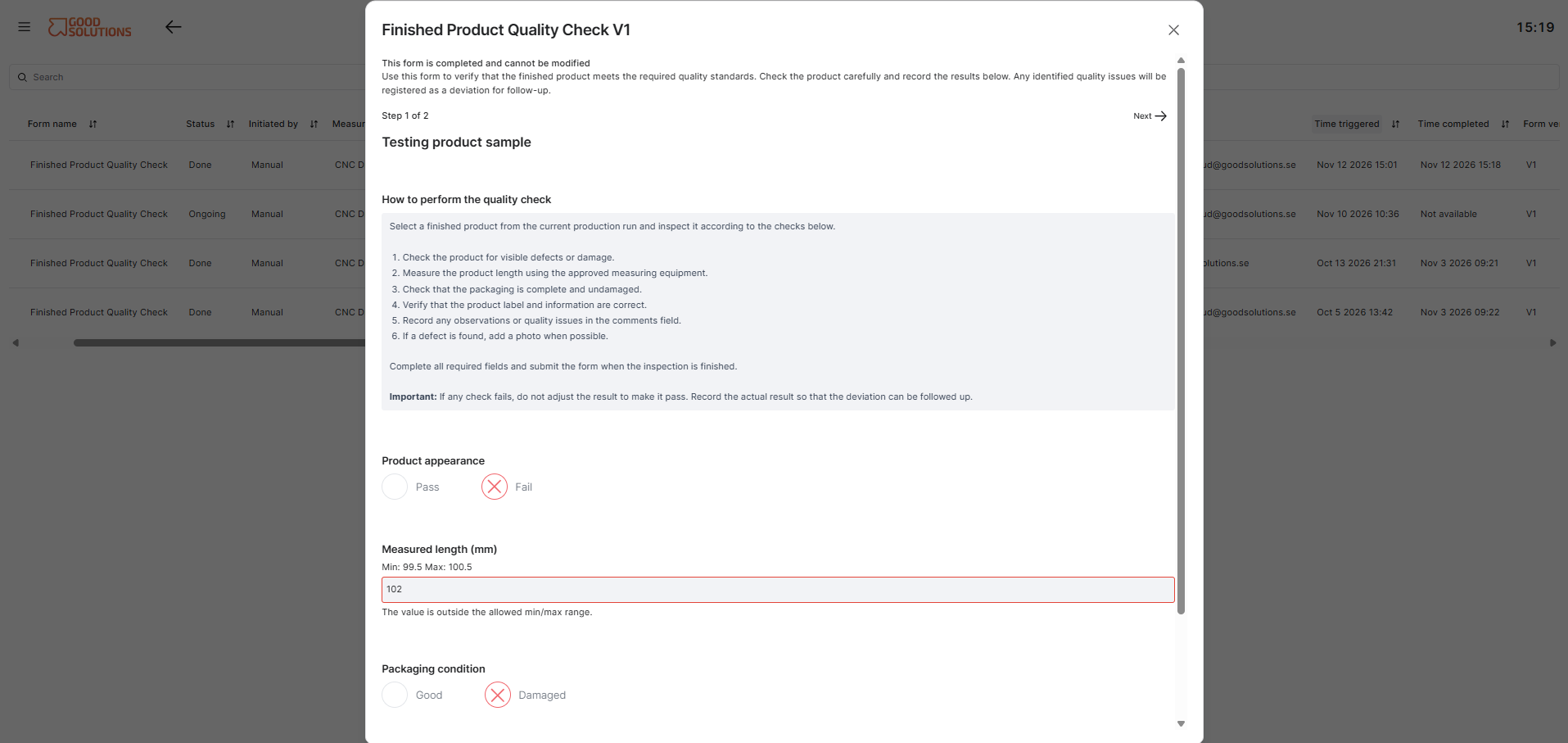
Depending on the Form, the submitted information may include:
- Numerical measurements and quantities.
- True / False answers.
- Multiple Choice selections.
- Written comments and observations.
- Identified deviations.
- Operator information.
This allows you to investigate individual inspections and procedures without needing to retrieve paper records or contact the Operator for the original information.
Step 8: Review Form Versions
The Form version column shows which published version of a Form was used for a particular submission.
For example, a submission marked V1 was created using Version 1 of the Form, while a submission marked V2 used Version 2.
This is particularly useful when Forms have been updated over time.
If a Quality Inspection Form has been modified to include additional questions or different deviation rules, you can identify which version was used for each inspection.
Historical submissions remain associated with the Form version used when they were completed, supporting traceability and consistent interpretation of results.
Tips for using the Forms Report
- Review Forms regularly: Monitor completion and identify procedures that require follow-up.
- Sort by recent activity: Use Last saved or Time completed to find the latest submissions.
- Investigate deviations: Open Forms containing deviations to understand what happened.
- Track completion times: Compare Time triggered and Time completed to identify delays.
- Use production context: Review Article, Order, and Measure Point information to understand where issues occurred.
- Check Form Versions: Ensure you understand which questions and rules were used for historical submissions.