
1. Open Operator Tools
- Go to app.goodsolutions.se.
- Log in with your credentials or Single Sign-On (SSO).
- Select your installation.
- Open Operator Tools and select your Measure Point (machine or production line).
2. Understand Your Production Status
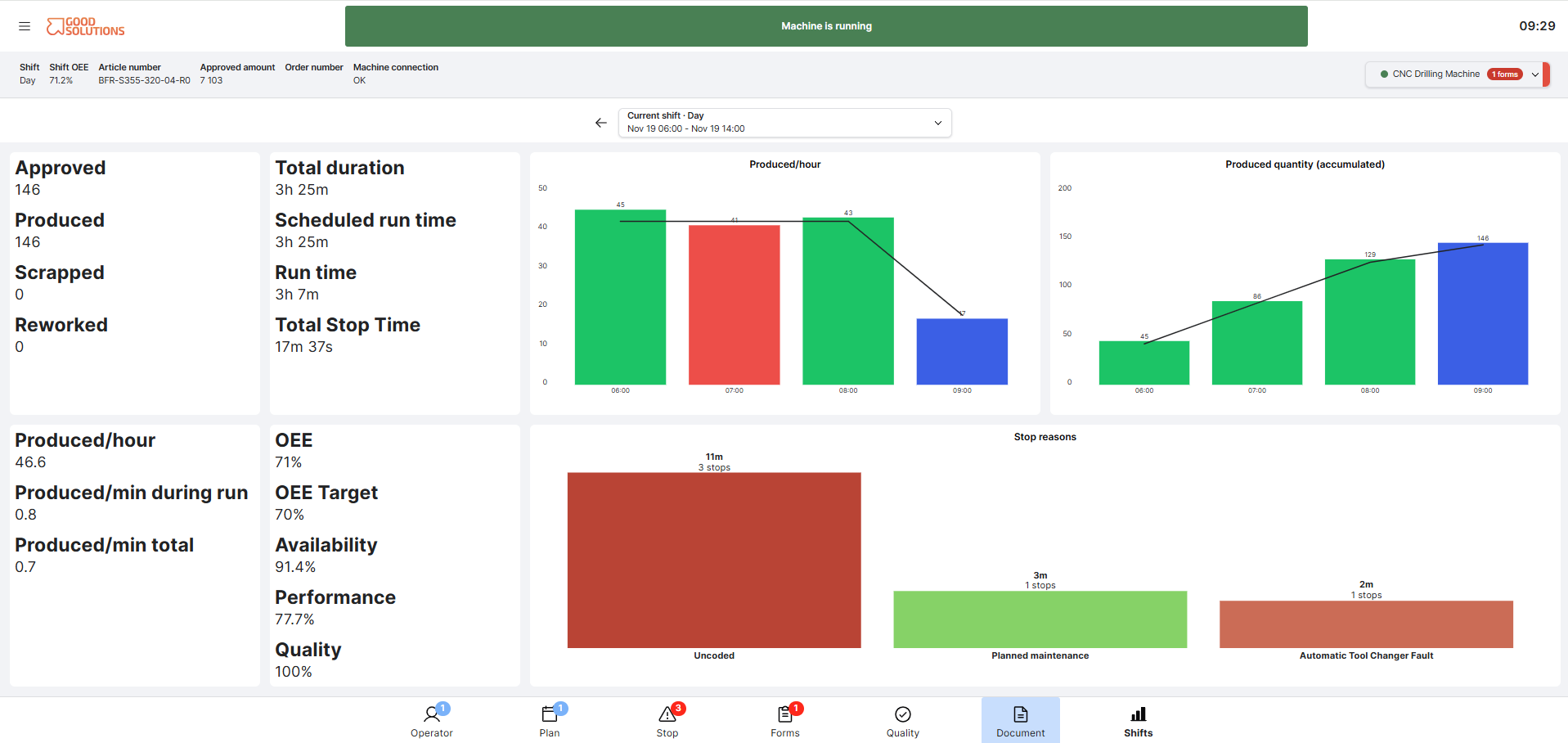
At the top of Operator Tools, you can see important production information:
- Machine status: Whether your machine is running or stopped.
- Shift and Shift OEE: Current shift and production performance.
- Article and Order: What is currently being produced.
- Approved amount: Number of approved units produced.
3. Manage Production
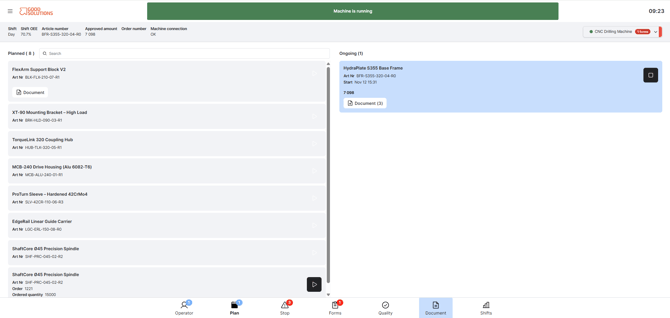
Open Plan to see planned and ongoing production.
Here you can:
- View planned Articles and Orders.
- Start a production run.
- Follow ongoing production.
- Access documentation associated with an Article or Order, such as work instructions, drawings, or setup instructions, by selecting its Document button.
Always make sure the correct Article or Order is selected and review any relevant documentation before starting production.
4. Categorise and Split Production Stops
Open Stops to review downtime.
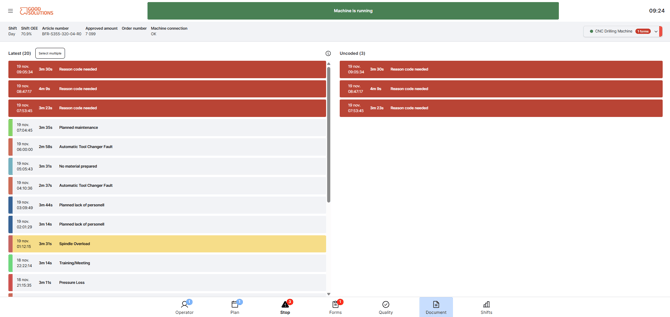
The Stops page provides two views:
- All Stops: Shows recorded production stops in chronological order.
- Uncoded Stops: Highlights stops that have not yet been assigned a stop reason and require attention.
Categorise a Stop
- Select a stop.
- Choose the correct stop reason.
- Add a comment if needed.
- Confirm your changes.
Split a Stop
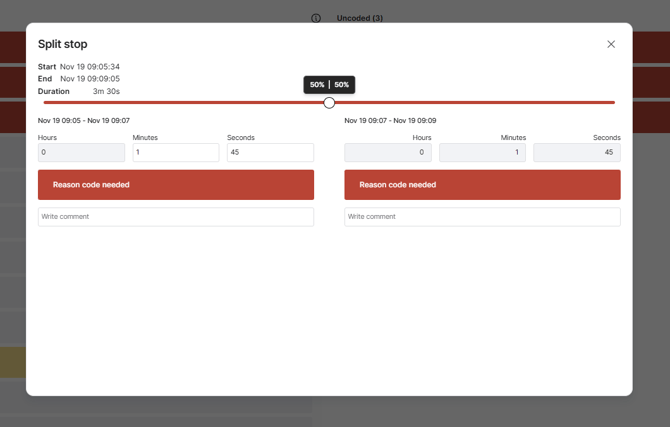
Sometimes a single stop contains multiple causes. For example, a machine might stop because of a material shortage, followed by a technical problem.
To split a stop:
- Select the stop.
- Choose Split Stop.
- Specify when the first reason ended and the next began.
- Assign the appropriate stop reason to each part.
- Confirm your changes.
Splitting stops ensures that downtime is attributed to the correct causes.
5. Report Scrap and Rework
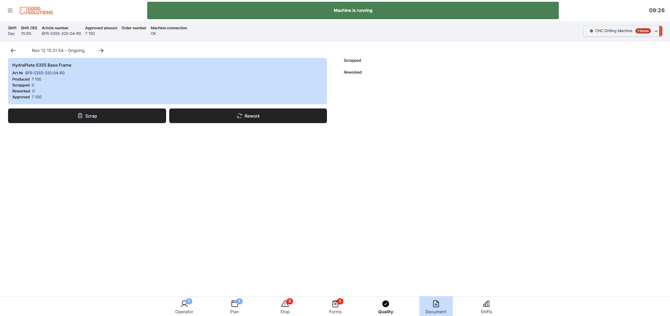
Open Quality when products are scrapped or require rework.
- Select the correct production run.
- Choose Scrap or Rework.
- Enter the quantity and select a reason.
- Add a comment if needed.
- Confirm.
Accurate quality reporting helps identify recurring production problems.
6. Complete Forms and Respond to Triggers
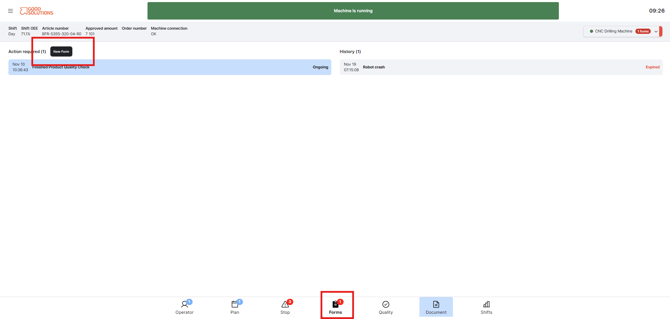
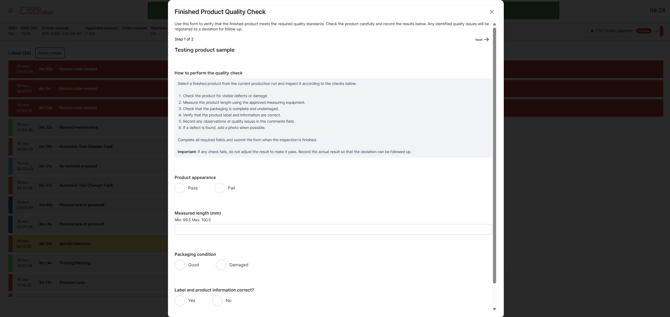
Forms are used for quality checks, inspections, setup checks, and other production activities.
There are two ways to start a Form:
Manual Start
- Open Forms.
- Find the Form you need to complete.
- Select it, fill in the required fields, and submit.
Triggered Forms
Some Forms are automatically triggered by production events, such as:
- Starting or stopping an Article or Order.
- Starting or ending a shift.
- Reaching a specified production quantity.
- Recording scrap or rework.
- Categorising a production stop.
- Reaching a scheduled time or interval.
Form Notifications
When a Form is triggered:
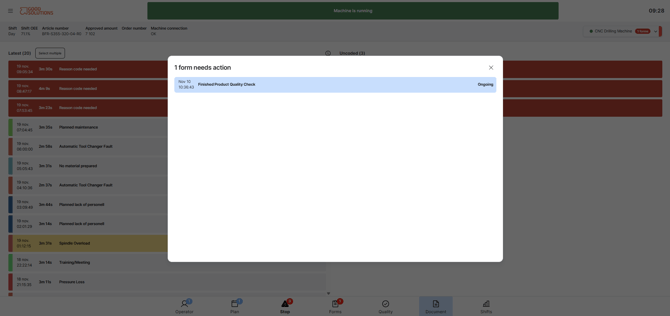
- A notification appears in Operator Tools, including an indicator on the Forms menu showing that Forms require attention.
- The triggered Form appears in the operator's action list.
- Select the notification or Form to review it.
- Accept and open the Form.
- Complete the required fields and submit.
Important: A triggered Form does not open automatically. You must select and accept it before completing it.
Pay attention to Form notifications to ensure that required production checks are completed at the right time.
7. Access Documents
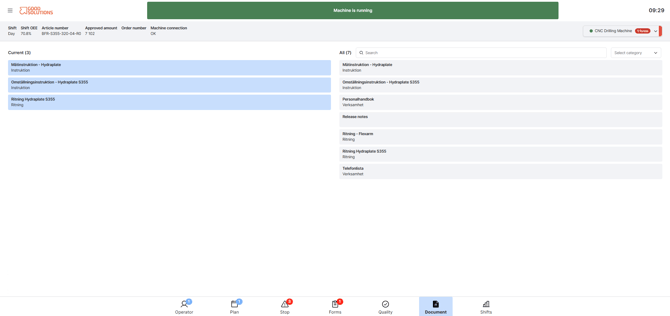
Open Documents to access work instructions, drawings, and other production documentation.
- Current: Documents related to the current Article or Order.
- All: Documents available for your Measure Point.
You can also access relevant documents directly from Plan, using the Document button on an Article or Order.
8. Review Your Shift
Open Shifts to view the Shift Report.
Here you can:
- Review OEE and production performance.
- See production quantities and downtime.
- Navigate between shifts to understand previous production results.
Remember
Good production data starts with the operator. By selecting the correct production run, categorising and splitting stops, reporting quality issues, and completing Forms, you help your team identify losses and continuously improve production.