
Coding a production stop means assigning a Stop Reason that explains why production was not running.
This helps keep production data accurate and makes it easier to understand where production time is being lost.
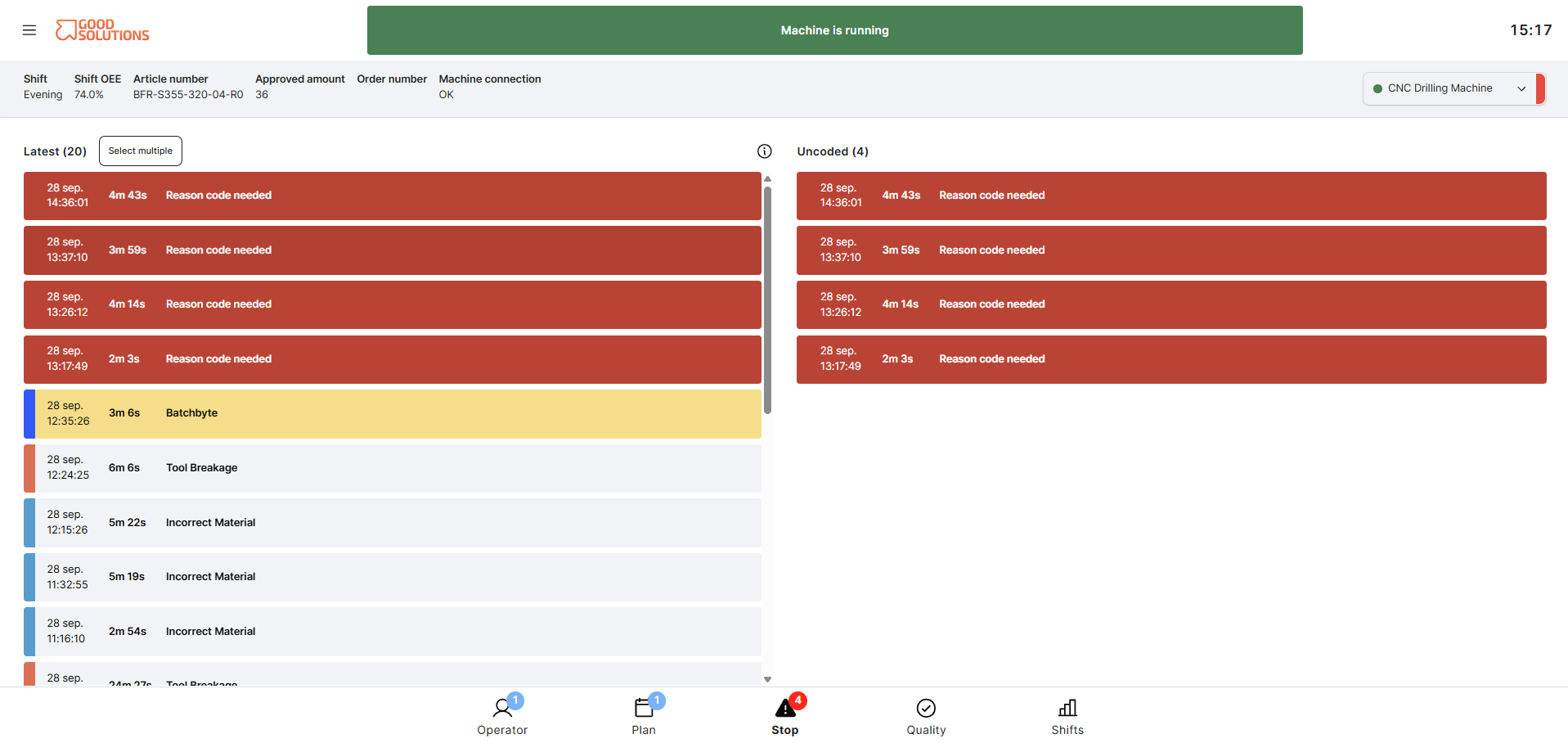
Code a production stop- Open Operator Tools.
- Go to the Stops page where production stops are shown.
- Find the uncoded stop you want to update.
- Select the stop.
- Choose the Stop Reason that best describes why production stopped.
- Write a comment to clarify the stop reason, if necessary.
- Confirm or save your selection.
The stop is now coded and will be included under the selected Stop Reason in reports and analysis.
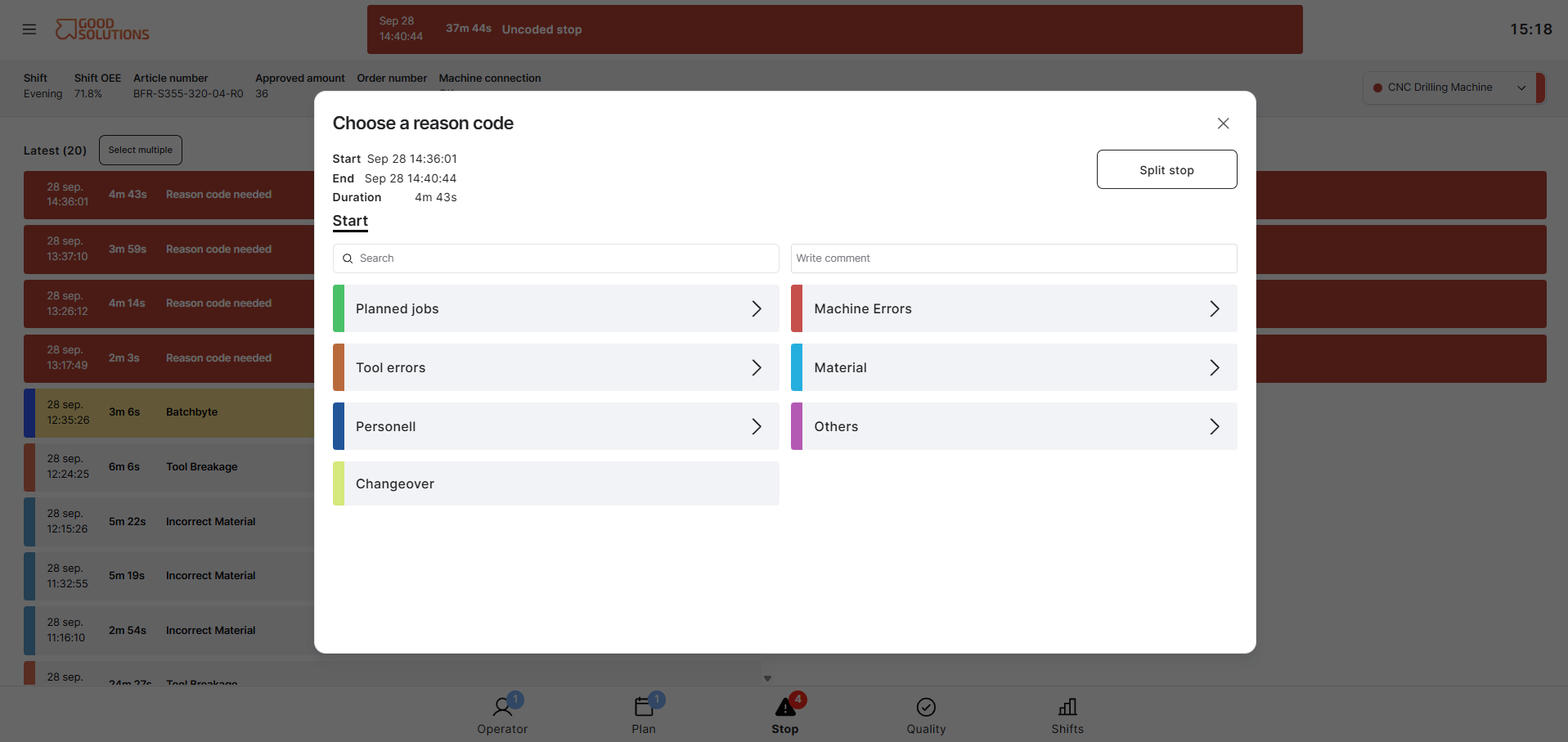
Choosing the correct Stop Reason
Select the reason that most accurately describes the cause of the stop.
For example:
- Machine breakdown
- Material shortage
- Cleaning
- Setup or adjustment
- Waiting for operator
- Quality issue
The available Stop Reasons depend on how your Good Solutions environment has been configured.
Why coding stops is importantCorrectly coding production stops helps your team:
- Understand why production time is being lost
- Identify recurring problems
- Analyse Availability losses
- Compare Stop Reasons and Stop Categories
- Improve the accuracy of OEE and production reports
If a stop has been coded incorrectly, you can open the stop again and re-code the stop reason.