
Overview
Documents in Good Solutions are managed through the Documents settings in the web product.
Here, authorized users can register document links and associate them with the relevant parts of production.
Managing Documents involves:
- Adding new document links
- Giving Documents recognizable names
- Associating Documents with Measure Points, Articles, and Orders
- Organizing Documents using Categories
- Managing Draft and Published Documents
- Keeping existing links and associations up to date
Important: Good Solutions does not store the document files themselves. Documents are maintained in external systems and referenced through links.
Step 1: Open Documents
- Log in to Good Solutions Web.
- Navigate to Settings.
- Open Documents.
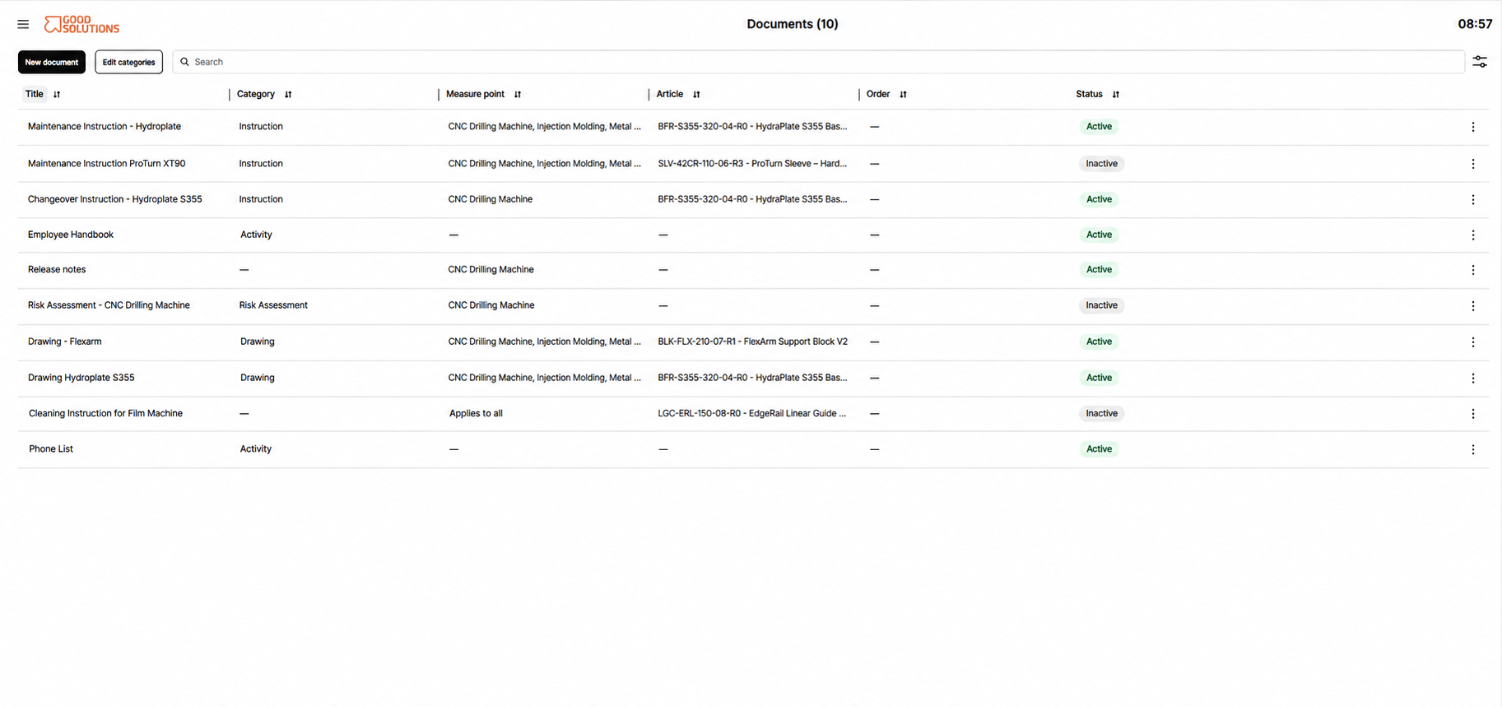
The Documents page provides an overview of the registered Documents.
Depending on the available settings and permissions, you can create new entries and manage existing ones.
Step 2: Add a New Document
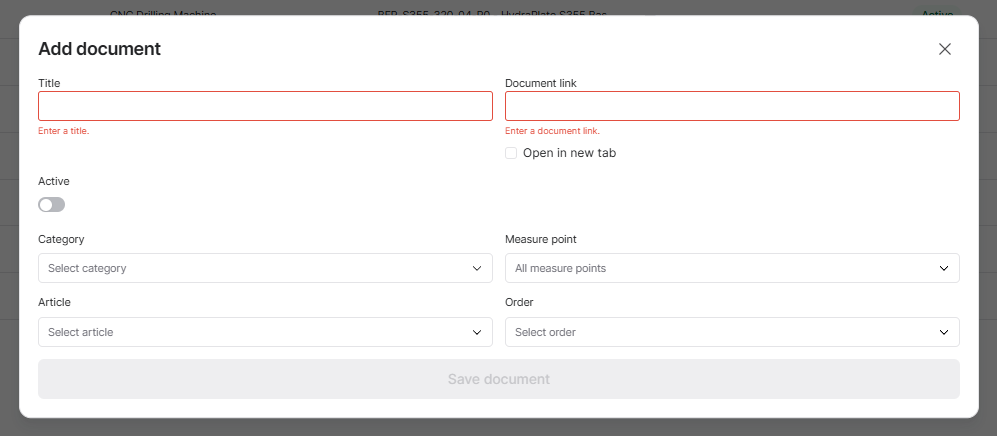
To register a new Document:
- Select the option to create a new Document.
- Enter a descriptive Name.
- Enter the Link to the document in its existing location.
- Configure the relevant associations and Category.
- Save the Document.
Choosing a Good Document Name
Use a name that clearly describes the document's content and purpose.
For example:
| Less useful | Recommended |
|---|---|
| Instruction 1 | CNC Machine – Startup Instructions |
| Quality | Article 12345 – Quality Specification |
| Setup | Packaging Line 2 – Changeover Procedure |
| Safety document | Injection Molding – Safety Instructions |
Clear naming makes it easier for operators to identify the correct information.
Adding the Document Link
Copy the link from the system where the document is stored.
This could be a document in SharePoint, a company document management system, or another accessible repository.
Make sure the link:
- Opens the intended document.
- Is accessible to the operators who need it.
- Points to the correct document or controlled version.
Tip: Where possible, use stable document links that remain valid when the document content is updated.
Step 3: Associate the Document with Production
Associations determine where a Document is relevant and how it can be found in Good Solutions.
Associate with Measure Points
Use a Measure Point association when the document is relevant to a particular machine or production line.
Examples include:
- Machine operating instructions
- Maintenance procedures
- Safety instructions
- General equipment setup procedures
These documents can be accessed through All Documents in Operator Tools for the relevant Measure Point.
Associate with Articles
Use an Article association when documentation relates to a particular product.
Examples include:
- Product specifications
- Assembly instructions
- Quality requirements
- Product-specific setup instructions
These documents can be made available in the context of the Article being produced.
Associate with Orders
Use an Order association when documentation is relevant to a particular production order.
Examples include:
- Customer-specific instructions
- Special production requirements
- Order-specific quality specifications
Order associations help operators access information that applies to a particular production run.
Use Categories
Categories help organize Documents into meaningful groups.
For example:
- Work Instructions
- Quality
- Safety
- Maintenance
- Setup Procedures
Using consistent Categories makes document collections easier to navigate and maintain.
Step 4: Manage Draft and Active Documents
Good Solutions supports Draft and Active document statuses.
These help distinguish documents that are still being prepared from documents that are ready to be made available in the production environment.
Draft
Use Draft while preparing a document entry, checking its link, or configuring its associations.
Active
Publish/activate the Document when its information and associations are ready for operational use.
Before publishing, verify that:
- The document name is clear.
- The link opens the correct resource.
- The relevant Measure Points, Articles, or Orders are associated.
- The Category is appropriate.
- Intended users have access to the external document.
Important: Publishing/activating a Document in Good Solutions does not publish or modify the underlying file in its external document management system.
Step 5: Update an Existing Document
Document links and associations may need to change as production processes evolve.
For example:
- A work instruction moves to a new location.
- A document is replaced by an updated procedure.
- A product begins running on an additional Measure Point.
- A document needs to be associated with a new Article or Order.
To update a Document:
- Open Settings → Documents.
- Find the Document you want to change.
- Open it for editing.
- Update the relevant information.
- Save your changes and ensure the intended published entry is available.
When changing document links, always verify that the new destination is accessible.
Step 6: Verify the Document in Operator Tools
After configuring and publishing a Document, check that operators can find it.
For Measure Point Documents
- Open Operator Tools in Good Solutions Web.
- Select the relevant Measure Point.
- Open All Documents.
- Verify that the Document is available.
For Article or Order Documents
- Open Operator Tools for the relevant Measure Point.
- Select the applicable Article or Order context.
- Open Current Documents, or access the document through the Production Plan.
- Verify that the correct Document is available.
If a Document is missing, review its publication status and associations.
If the Document appears but cannot be opened, check the external link and the user's access permissions.
Best Practices for Managing Documents
1. Maintain One Source of Truth
Keep the actual files in your existing document management system.
Use Good Solutions to make them accessible in production rather than creating unnecessary copies.
2. Use Consistent Naming
Agree on naming conventions so operators can quickly identify the correct document.
3. Associate Documents Carefully
Avoid associating every Document with every Measure Point.
Instead, connect each Document to the equipment, Articles, or Orders where it is relevant.
4. Keep Links Updated
Review links when documents are moved, renamed, or replaced.
Broken links can prevent operators from accessing important instructions.
5. Verify Access Permissions
A Document being visible in Good Solutions does not necessarily mean that an operator has permission to open it in the external system.
Ensure the intended users have appropriate access.
6. Review Documents Regularly
Include Document links and associations in your organization's regular documentation review process.
Remove or update obsolete references so operators can trust the information they find.
Troubleshooting
| Problem | What to check |
|---|---|
| Document does not appear in Operator Tools | Check its Published status and Measure Point, Article, or Order associations |
| Document link does not open | Verify that the URL is correct and still active |
| Operator receives an access error | Check permissions in the external document system |
| Wrong Document appears for an Article | Review the Article association |
| Document is difficult to find | Improve its Name, Category, or associations |
Key Takeaways
- Documents are managed in Good Solutions Web through Settings.
- Each Document contains a link to an externally stored file.
- Associations determine the production context in which Documents are available.
- Draft and Published statuses help manage operational availability.
- Verify that published Documents can be found and opened in Operator Tools.
- Regularly review document links, permissions, and associations to keep information reliable.