
What are Measure Points for Manual Start?
The Measure Points for Manual Start setting controls where Operators can manually start a Form in Operator Tools.
By assigning a Form to one or more Measure Points, you make it available to Operators working at those locations in production.
This is useful for Forms that need to be completed on demand rather than automatically triggered by a production event.
For example:
- Quality inspections: Allow Operators to perform additional quality checks when needed.
- Safety checklists: Make safety inspections available at specific machines or production lines.
- Maintenance checks: Allow Operators to record equipment inspections.
- Deviation reports: Enable Operators to document unexpected issues during production.
- Cleaning checklists: Make cleaning procedures available when required.
Step 1: Open Form Settings
- Navigate to Forms in Good Solutions Web.
- Create a new Form or open an existing Form.
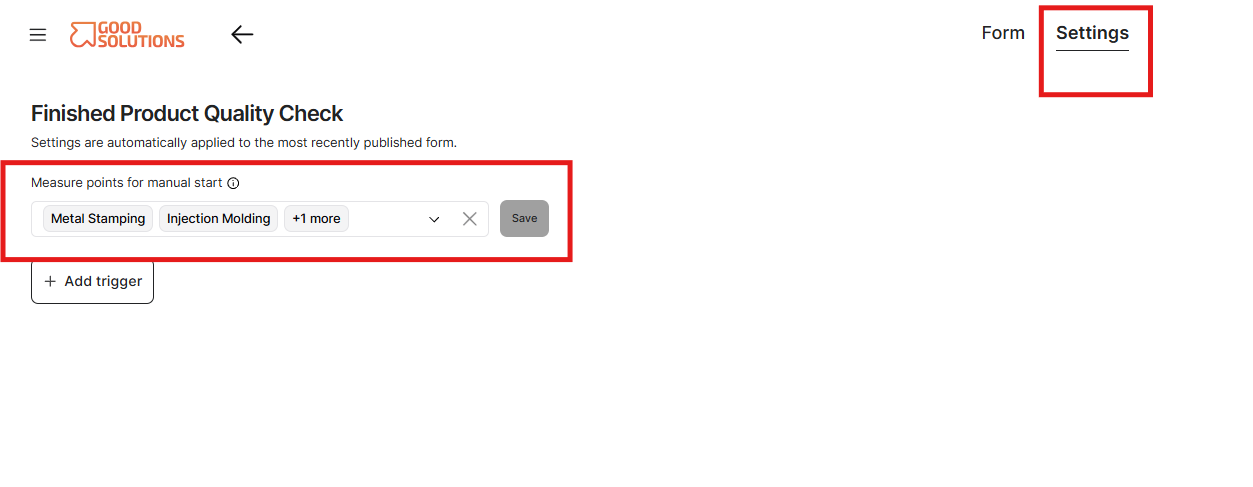
- Select the Settings tab in the Form editor.
- Locate the section Measure Points for Manual Start.
This section allows you to configure where the Form can be started manually.
Step 2: Select Measure Points
- Open the Measure Point selection.
- Select the Measure Points where the Form should be available.
- Review your selection.
- Apply or save the configuration.
You can assign the same Form to multiple Measure Points.
For example, if you have a standardized Daily Safety Checklist used across several production lines, you can assign it to all relevant Measure Points instead of creating separate Forms.
Tip: Only select Measure Points where the Form is relevant. This makes it easier for Operators to find the correct Forms without having to browse through unnecessary options.
Step 3: Make the Form available to Operators
Once you have selected the appropriate Measure Points, make sure your Form is published.
Published Forms assigned to a Measure Point become available for manual start in Operator Tools at that Measure Point.
Operators can then:
- Open Operator Tools.
- Select the relevant Measure Point.
- Find the Form among the available Forms.
- Start and complete the Form.
- Submit the completed Form.
The submitted answers are stored in Good Solutions and can be reviewed through Forms reporting.
Important: Measure Point assignments are Form settings and are applied immediately. Unlike changes to Form content, they do not require publishing a new Form version.
This means you can change where an existing published Form is available without modifying its questions or structure.
Manual Start vs. Automatic Triggers
Good Solutions supports two ways of making Forms available to Operators.
| Manual Start | Automatic Triggers |
|---|---|
| Operators choose when to start the Form. | The Form is presented based on a configured production event. |
| Availability is controlled through Measure Point assignments. | Availability is controlled through trigger settings. |
| Suitable for on-demand inspections and checklists. | Suitable for recurring or event-driven procedures. |
For example, a Quality Inspection Form could be available for manual start whenever an Operator needs to perform an additional inspection.
The same Form could also have an automatic trigger that presents it when a production order starts.
Note: Measure Points for Manual Start only control manual availability. Automatic triggers are configured separately in the Form's Settings tab.
Tips for configuring manual Forms
- Select relevant Measure Points: Only make Forms available where they are needed.
- Reuse Forms: Assign standardized Forms to multiple Measure Points to ensure consistent procedures.
- Use clear Form names: Help Operators quickly identify the correct Form.
- Combine manual and automatic start: Allow Operators to start additional inspections even when automatic triggers are configured.
- Review assignments regularly: Make sure Forms remain available at the correct Measure Points as your production environment changes.