
The Shift Report in Operator Tools gives you an overview of production performance for a selected Measure Point and shift. You can use the Shift Report to follow the current shift or review production results from previous shifts.
Open the Shift Report
To open the Shift Report:
- Open Operator Tools.
- Select the correct Measure Point using the selector in the upper-right corner.
- Select Shifts in the navigation menu at the bottom of the screen.
The Shift Report opens with the current shift selected by default.
Check the selected Measure Point
The Measure Point you are currently viewing is shown in the upper-right corner.
To view another Measure Point:
- Open the Measure Point selector.
- Select the Measure Point you want to view.
- The Shift Report updates with information for the selected Measure Point.
Always check that you have selected the correct Measure Point before reviewing shift results.
Navigate between shifts
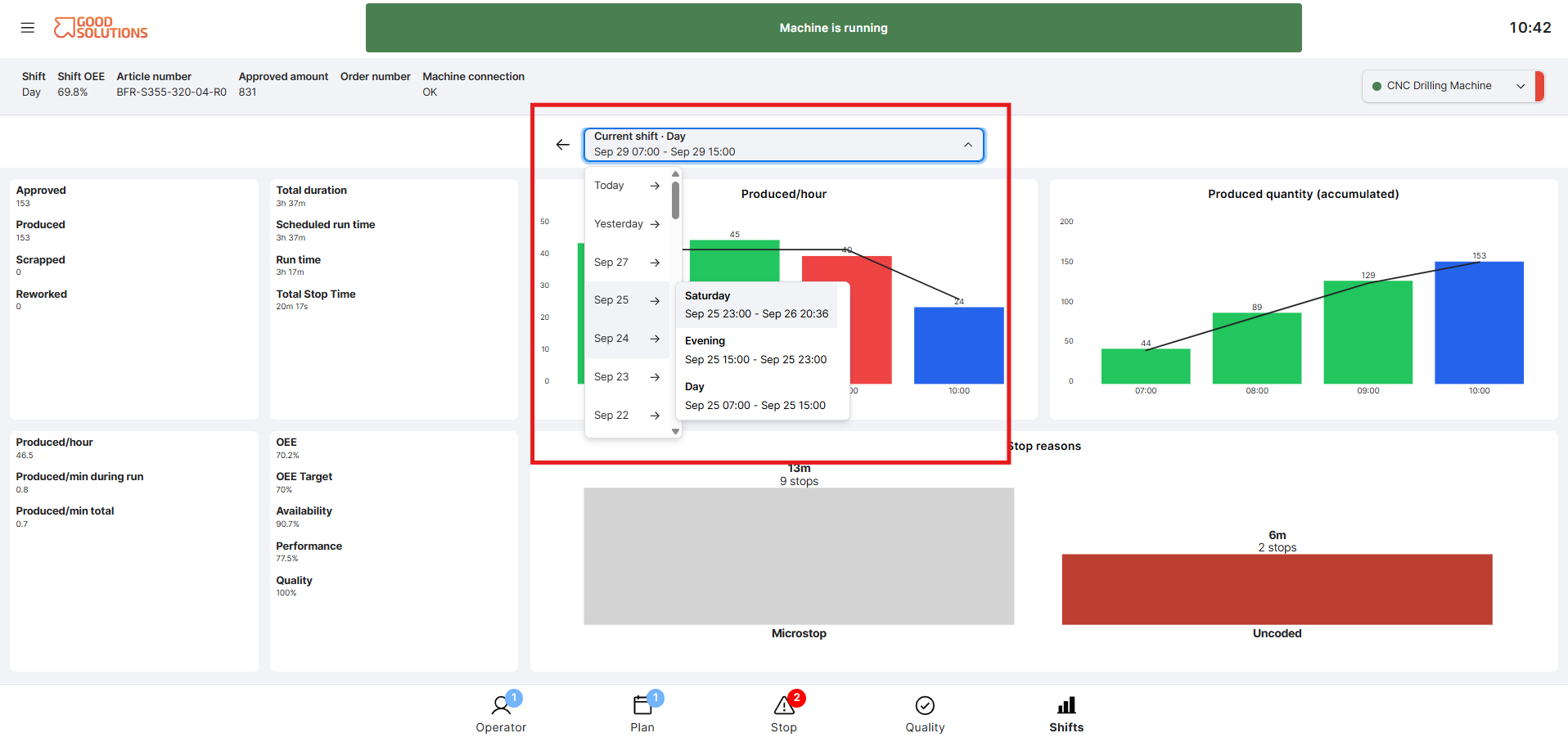
The Shift selector at the top of the report shows the shift you are currently viewing, including its name, date and start and end times.
For example:
Current shift · Day
Sep 29 07:00 – Sep 29 15:00
To view another shift:
- Open the Shift selector at the top of the report.
- Select a day. You can quickly access Today or Yesterday, or select an earlier date from the list.
- If the selected day contains multiple shifts, the available shifts are displayed.
- Select the shift you want to review, such as Day, Evening, or another configured shift.
- The Shift Report updates to show production data for your selected shift.
Each shift displays its start and end time, helping you make sure you have selected the correct production period.
Return to the current shift
After reviewing an earlier shift, open the Shift selector again and select Today, followed by the current shift, to return to current production.
Navigate within the Shift Report
Once you have selected a shift, the complete report updates to match your selection.
The report contains information about:
- Produced, approved, scrapped and reworked quantities
- Production and stop time
- Production speed
- OEE, Availability, Performance and Quality
- Production development during the shift
- Stop Reasons and uncoded stops
For an explanation of these values, see Understand Shift Report Metrics.
Move to other Operator Tools
Use the navigation menu at the bottom of the screen to move between the main Operator Tools:
Operator → Plan → Stop → Quality → Shifts
Select Shifts whenever you want to return to the Shift Report.