
What is Form Preview?
The Preview function allows you to see how your Form will appear to Operators in Operator Tools before publishing it.
Previewing your Form helps you verify that questions are clearly presented, fields are correctly configured, and the overall structure is easy to follow.
This is particularly useful when creating longer Forms with multiple pages, required fields, and deviation rules.
Step 1: Open the Form editor
- Navigate to Forms in Good Solutions Web.
- Create a new Form or open an existing Form.
- Select the Form tab to access the Form editor.
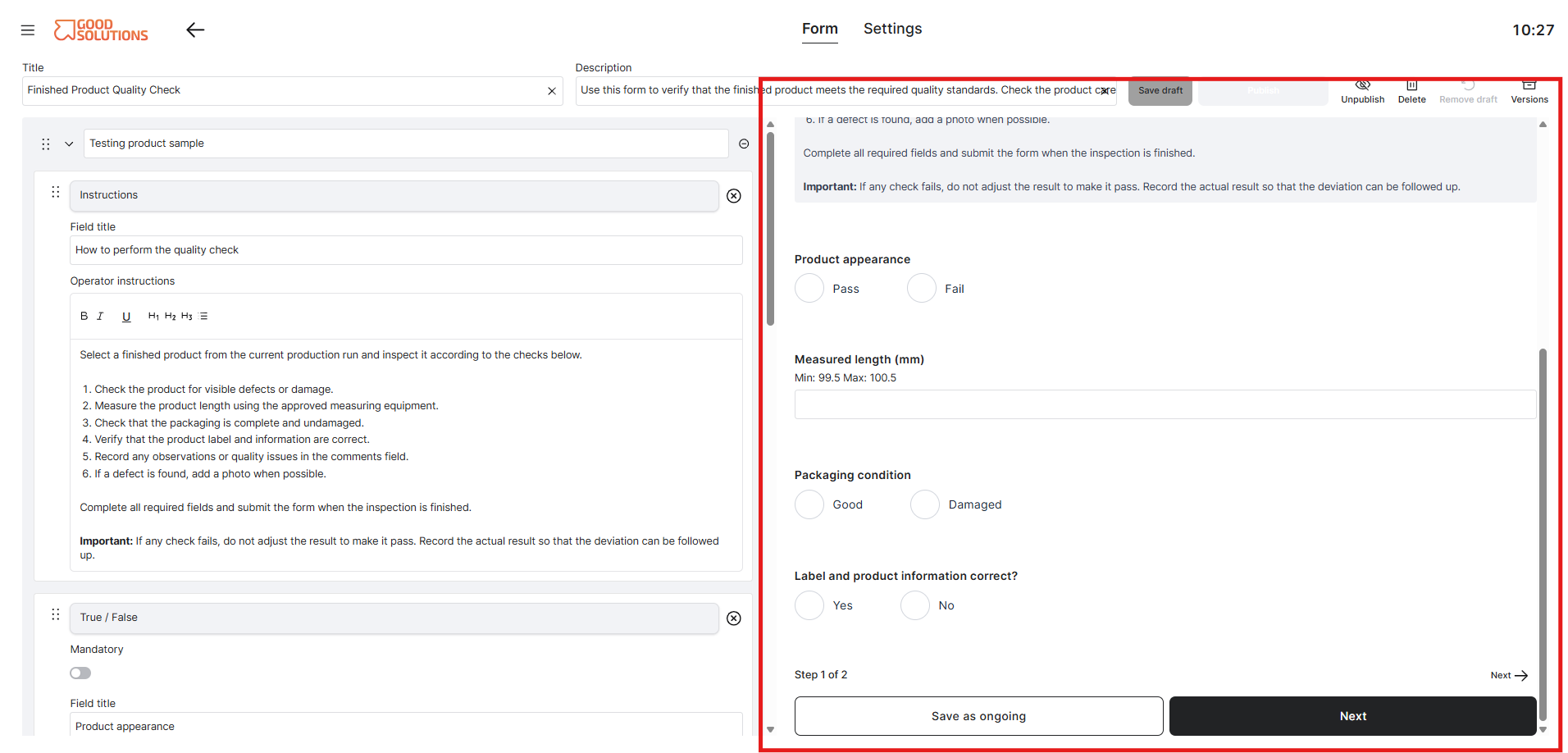
- The Preview appears on the right-hand side of the Forms editor.
You can now review the Form from the Operator's perspective.
Step 2: Review your Form
In Preview, check that your Form is presented as intended.
Pay particular attention to:
- Questions and labels: Make sure all questions are clear and easy to understand.
- Field types: Verify that each question uses the appropriate input type, such as text, numbers, or multiple choice.
- Instructions: Check that any additional guidance is visible and understandable.
- Required fields: Verify that mandatory questions are clearly identified.
- Field order: Make sure questions appear in a logical sequence.
Tip: Read through the Form as if you were an Operator completing it for the first time. Consider whether each question provides enough information to answer it correctly.
Step 3: Navigate between pages
If your Form contains multiple pages, use the page navigation in Preview to review each section.
Check that:
- Pages appear in the intended order.
- Each page has a clear and descriptive name.
- Questions are grouped logically.
- The Form is easy to navigate from beginning to end.
For longer checklists or inspections, a clear page structure makes it easier for Operators to complete the Form efficiently.
Step 4: Check field configurations
Review the fields to make sure they are configured as intended.
For example, if your Form contains a quality inspection question, check that the correct answer options are available.
For numerical fields, verify that the question includes the appropriate measurement unit, such as °C, mm, or kg.
If you have configured deviation rules, review the conditions to ensure they match your requirements.
Note: Preview is intended to help you review the Form before publication. For a complete verification of the Operator workflow, you should also test the published Form in Operator Tools.
Step 5: Make adjustments
If you notice anything that needs to be changed:
- Update the relevant fields, questions, or instructions.
- Check Preview again to review your changes.
Repeat this process until you are satisfied with the Form.
Tips for previewing Forms
- Preview before publishing: Always review new Forms and significant changes.
- Check every page: Make sure no questions or instructions are missing.
- Keep the Operator in mind: Use clear language and avoid unnecessary complexity.
- Review deviations: Check that deviation conditions reflect your quality or production requirements.
- Test the complete workflow: After publishing, verify that the Form works as expected in Operator Tools.