
What are Form Versions?
Form Versions allow you to make changes to an existing Form while keeping the current published version available to Operators.
Whenever you modify the content of a published Form, Good Solutions creates a Draft containing your changes. The Draft can be edited and reviewed without affecting the version currently being used in production.
When you are satisfied with your changes, you can publish the Draft as a new version of the Form.
This helps ensure that Operators always work with a published Form while allowing you to continuously improve questions, instructions, and procedures.
Step 1: Create and publish your first Form
When you create a new Form, it starts as a Draft.
- Navigate to Forms in Good Solutions Web.
- Create a new Form.
- Add the required fields, questions, and instructions.
- Preview the Form to verify its content and layout.
- Click Publish when the Form is ready.
Your Form is now published and can be used by Operators in Operator Tools according to its configuration.
The first published version becomes Version 1.
Important: Only published Forms are available to Operators. Forms that have never been published cannot be completed in Operator Tools.
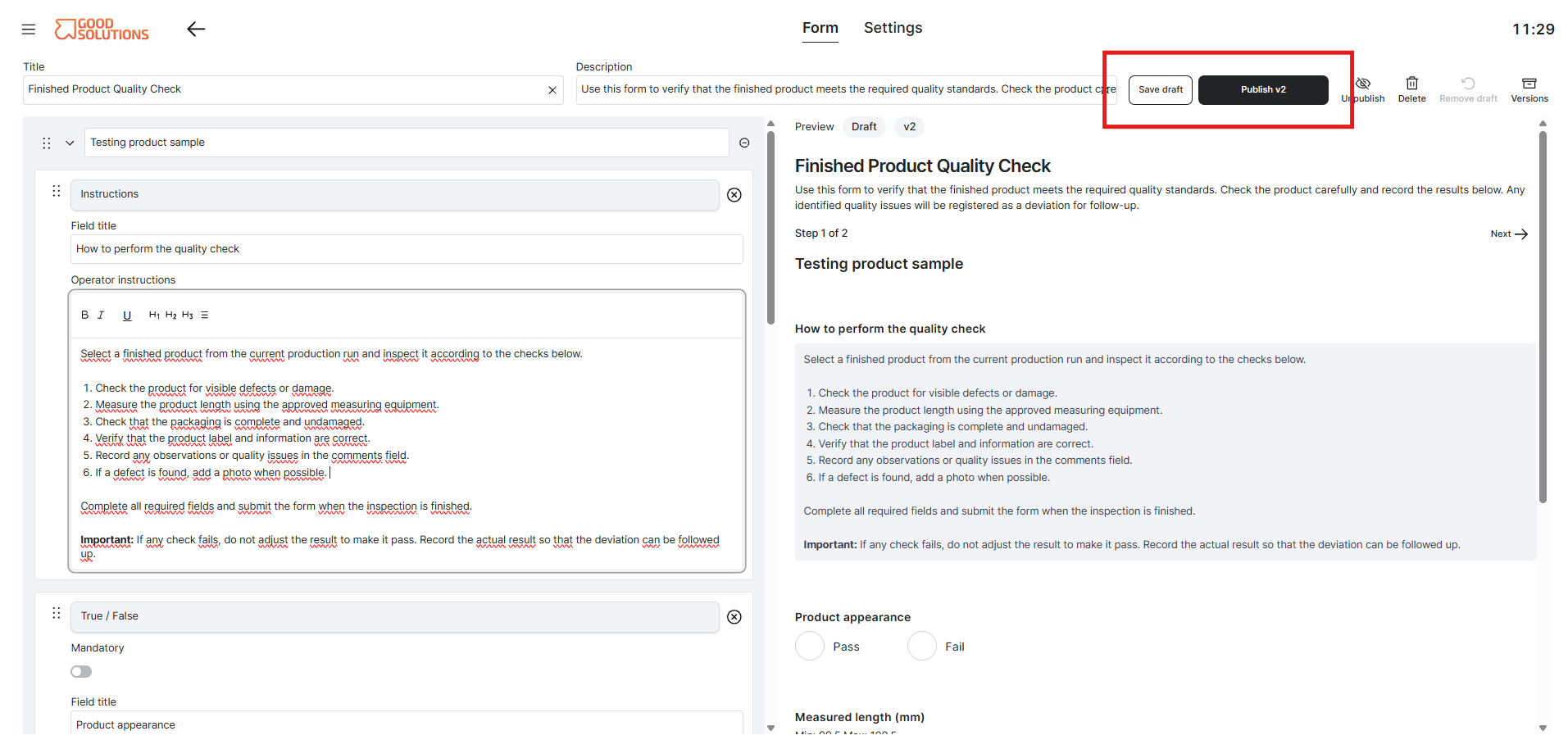
Step 2: Edit a published Form
You can update a published Form whenever you need to change its questions, instructions, or structure.
- Open the Form you want to modify.
- Select the Form tab.
- Make the required changes.
For example, you might:
- Add or remove questions.
- Change field labels or instructions.
- Update answer options.
- Modify required fields or deviation rules.
- Add, remove, or reorganize pages.
When you make changes to the Form content, Good Solutions creates a new Draft.
The existing published version remains unchanged and continues to be available to Operators.
This means you can work on improvements without immediately affecting production.
Step 3: Review your Draft
Before publishing your changes, review the Draft to ensure everything is correct.
- Open the Form editor.
- Review the updated questions, fields, and instructions.
- Use Preview to see how the Form will appear to Operators.
- Check that any required fields and deviation rules are configured correctly.
- Verify that the pages and questions appear in the intended order.
You can continue editing the Draft until you are satisfied with the changes.
Tip: Always preview a Form before publishing a new version, particularly when making changes to important quality or safety procedures.
Step 4: Publish a new version
When your Draft is ready, you can publish it as a new Form version.
- Open the Form containing your Draft.
- Review the changes.
- Click Publish.
- Confirm the publication.
Good Solutions publishes the Draft as the next version of the Form.
For example, if the current published Form is Version 1, publishing the Draft creates Version 2.
The newly published version becomes the version available to Operators when starting the Form.
The previous published version is retained in the Form's version history.
Step 5: View previous Form Versions
Good Solutions maintains a version history of published Form content.
To review previous versions:
- Open the Form in Good Solutions Web.
- Open the Versions view.
- Select the version you want to review.
- View the Form content associated with that version.
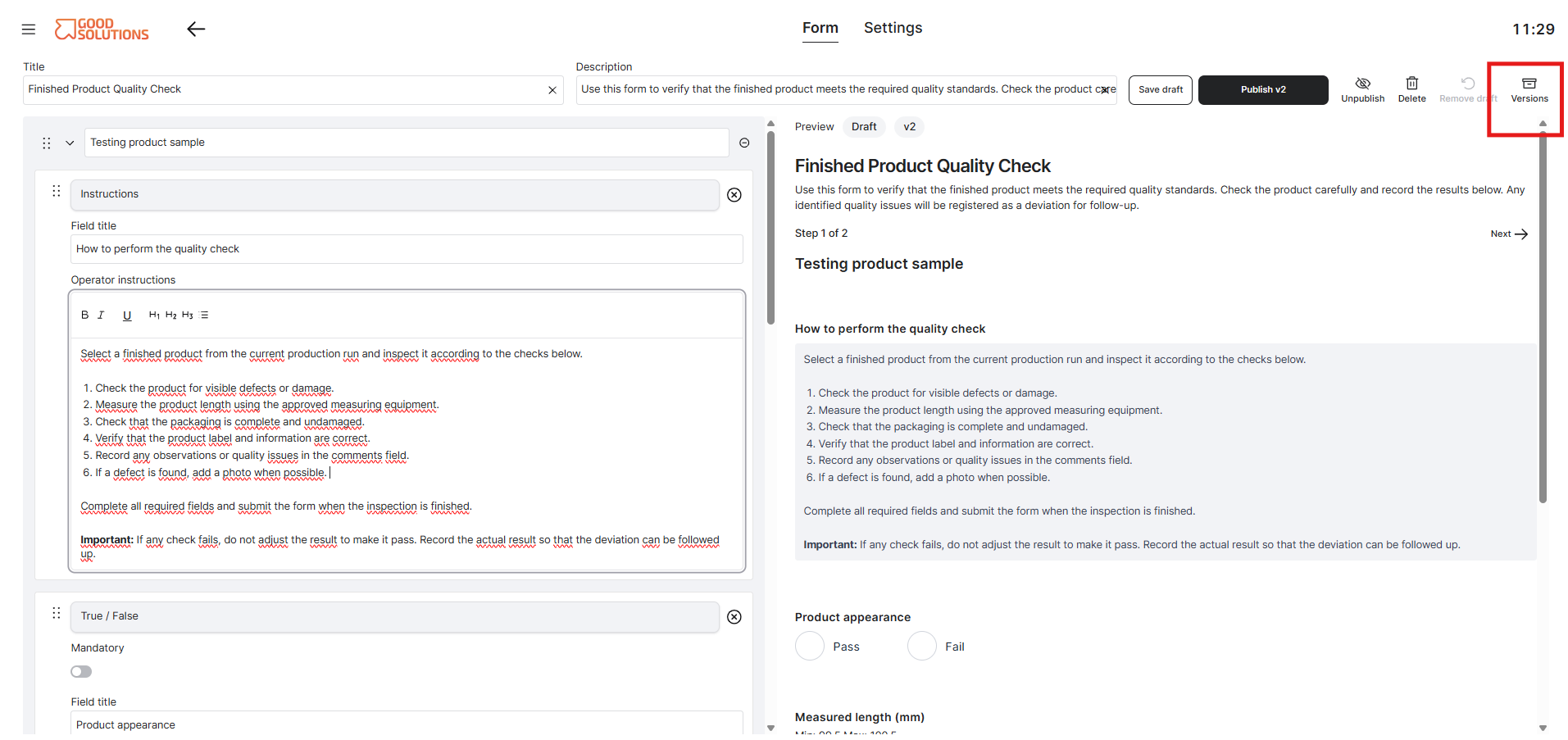
The version history allows you to see how the Form has changed over time, including previous questions, fields, and page structures.
This is particularly useful when reviewing historical quality inspections or understanding which Form structure was used at a particular time.
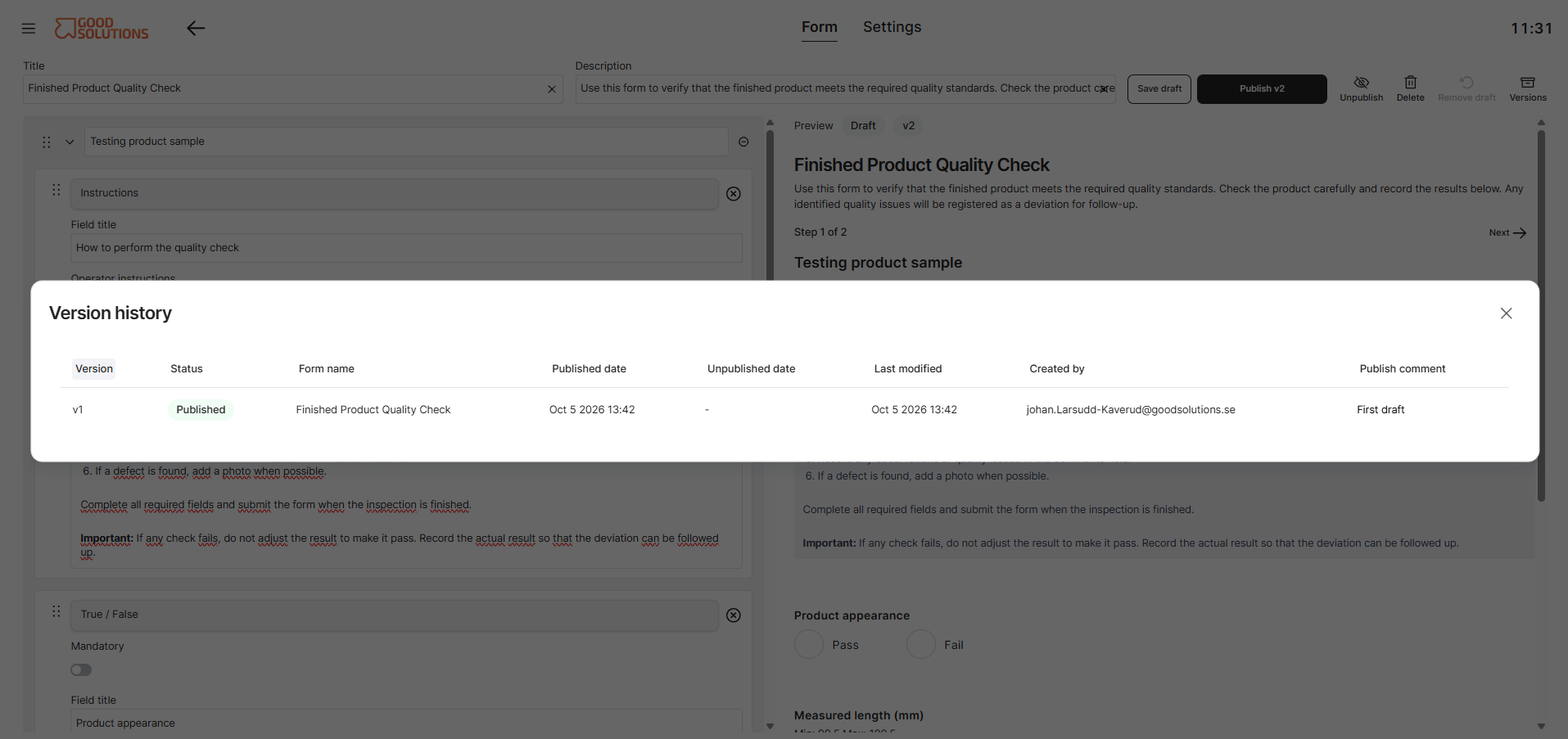
Important: Form Versions only include the content managed under the Form tab. Settings such as Measure Point assignments and automatic Triggers are not included in the version history.
Step 6: Reset a Draft
If you have made changes to a published Form but decide not to keep them, you can reset the Draft.
- Open the Form containing the Draft.
- Click Reset.
- Confirm that you want to discard the Draft changes.
Good Solutions discards the unpublished changes and restores the Form editor to the current published version.
The published Form remains unchanged and available to Operators.
Important: Resetting a Draft discards the unpublished Form content changes. Make sure you no longer need these changes before resetting.
Understanding Form content and Settings
Good Solutions separates Form content from Form Settings.
| Form content | Form Settings |
|---|---|
| Questions and fields | Measure Points for Manual Start |
| Field labels and instructions | Automatic Form Triggers |
| Required fields | Trigger timing and conditions |
| Deviation rules | Trigger Lifecycle settings |
| Pages and Form structure | Trigger assignments |
| Changes create a Draft | Changes apply immediately |
| Requires Publish to become active | Does not require publishing |
| Included in version history | Not included in version history |
For example, if you add a new question to a published Form, the change is saved in a Draft and must be published before Operators see it.
However, if you assign the Form to another Measure Point or change an automatic Trigger, the setting is applied immediately without creating a new Form version.
This allows you to manage where and when Forms are used independently of their content.
Example: Updating a Quality Inspection Form
Imagine that you have a Quality Inspection Form currently published as Version 1.
Operators are using it to record measurements and inspection results.
You decide to add an additional question about surface quality.
- Open the published Quality Inspection Form.
- Add the new question in the Form editor.
- Good Solutions creates a Draft containing the change.
- Operators continue using Version 1 while you review the Draft.
- Preview the updated Form.
- Publish the Draft when it is ready.
The Form is now published as Version 2, containing the new surface quality question.
Version 1 remains available in the version history, allowing you to review the Form content that was used previously.
Tips for managing Form Versions
- Publish only when ready: Review changes before making them available to Operators.
- Use Preview: Verify that the updated Form is clear and easy to complete.
- Keep changes focused: Make it easier to understand what has changed between versions.
- Use Drafts: Prepare improvements without interrupting the current production workflow.
- Review version history: Understand how Forms have evolved over time.
- Remember the difference between Form and Settings: Changes to Measure Point assignments and Triggers apply immediately and do not create new versions.