
What Are Dashboard Deliveries?
Dashboard Deliveries allow you to automatically distribute Good Solutions Dashboards by email according to a predefined schedule.
Instead of manually opening a Dashboard and sharing production results, you can configure recurring deliveries to ensure that the right people receive relevant production information at the right time.
This is particularly useful for:
- Daily production meetings: Share the previous day's production results before the morning meeting.
- Weekly performance reviews: Distribute a summary of production performance every Monday.
- Management reporting: Keep Factory Managers and other stakeholders informed about production results.
- Shift follow-up: Provide recurring updates to relevant production team members.
A delivery contains a link to the selected Dashboard, allowing recipients to access the production information.
How to Schedule a Dashboard Delivery
Step 1: Open Dashboard Deliveries
- Navigate to Dashboards in Good Solutions.
- Select the Deliveries tab at the top of the page.
- Click New delivery.
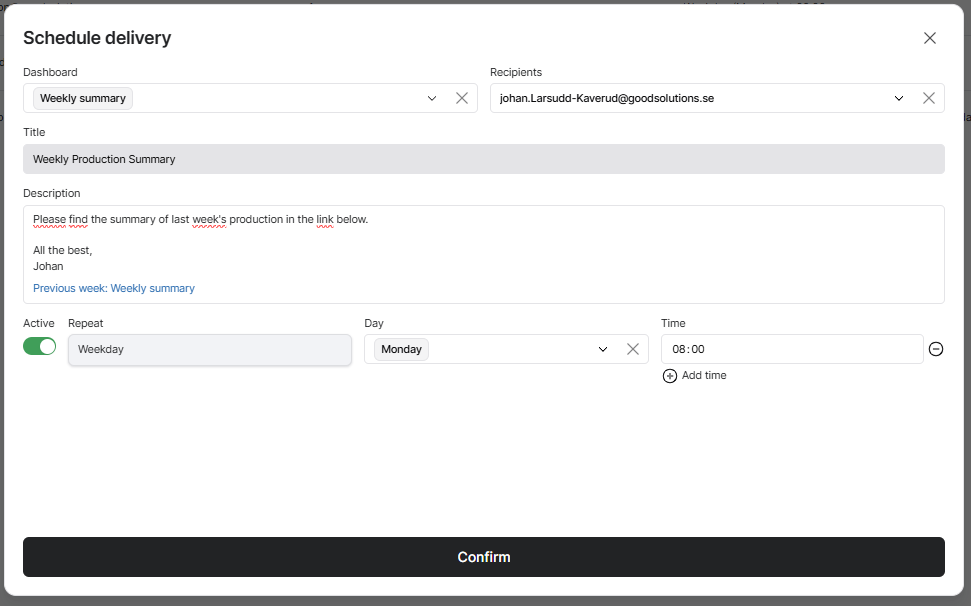
This opens the Schedule delivery window.
Step 2: Select Dashboard and Recipients
Configure the following settings:
| Setting | Description |
|---|---|
| Dashboard | Select the Dashboard you want to distribute. |
| Recipients | Select one or several people who should receive the email. |
| Title | Enter the title of the delivery. |
| Description | Write the message that recipients will receive with the Dashboard link. |
Tip: Use a descriptive title, such as Daily Production Summary or Weekly OEE Review, so recipients immediately understand the purpose of the email.
Step 3: Configure the Delivery Schedule
Choose when and how frequently the Dashboard should be delivered.
| Setting | Description |
|---|---|
| Active | Enable or disable the scheduled delivery. |
| Repeat | Select the recurrence pattern for the delivery. |
| Day | Choose which day or days the delivery should occur. |
| Time | Specify the time when the email should be sent. |
| Add time | Add additional delivery times when needed. |
For example, you can configure a delivery to be sent every Monday at 08:00.
You can also select several weekdays to create a recurring daily delivery on working days.
Step 4: Confirm the Delivery
Once you have configured the Dashboard, recipients, message, and schedule:
- Review the settings.
- Make sure Active is enabled if you want deliveries to begin according to the schedule.
- Click Confirm.
The scheduled delivery will now appear in the Deliveries list.
Managing Scheduled Deliveries
The Deliveries tab provides an overview of your configured Dashboard deliveries.
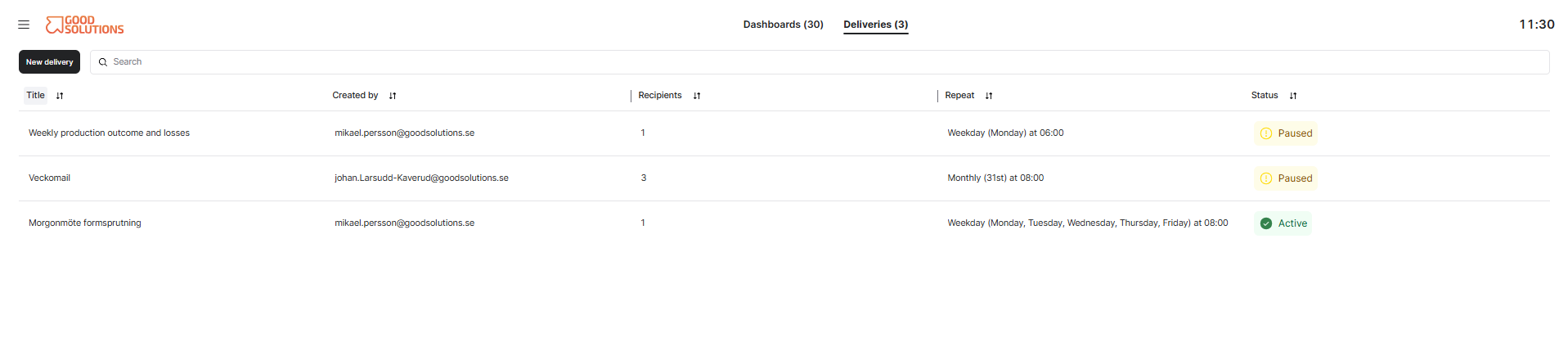
Each delivery displays:
| Column | Description |
|---|---|
| Title | The name of the scheduled delivery. |
| Created by | The user who created the delivery. |
| Recipients | The number of people receiving the email. |
| Repeat | The configured delivery frequency, days, and time. |
| Status | Whether the delivery is Active or Paused. |
Active and Paused Deliveries
Deliveries can have two statuses:
- Active: The delivery is enabled and scheduled to send emails.
- Paused: The delivery is temporarily disabled and will not send emails until reactivated.
This allows you to temporarily stop deliveries without needing to recreate their configuration.
Practical Examples
Example 1: Daily Morning Meeting
A Production Manager wants the team to review the previous day's results before the daily morning meeting.
Configuration:
- Dashboard: Daily Production Overview
- Recipients: Production Leaders and Production Managers
- Repeat: Weekday
- Days: Monday–Friday
- Time: 07:30
- Active: Enabled
The recipients receive an email each weekday morning with a link to the Dashboard.
This helps ensure that everyone starts the meeting with access to the same production information.
Example 2: Weekly Production Summary
A Factory Manager wants a weekly overview of production efficiency and losses.
Configuration:
- Dashboard: Weekly Summary
- Recipients: Factory Manager and Production Managers
- Repeat: Weekday
- Day: Monday
- Time: 08:00
- Active: Enabled
The email can include a description such as:
"Here is the production summary for last week. Review the Dashboard to see OEE performance, production output, and the main production losses."
This supports regular performance follow-up without requiring manual distribution.
Example 3: Monthly Management Review
A management team wants to review production performance once a month.
Configure a monthly delivery containing a link to a Dashboard designed for management reporting.
This can provide a consistent starting point for discussions about production efficiency, quality, and improvement priorities.
Tips for Getting More Value
- Schedule deliveries before meetings: Give recipients time to review production results in advance.
- Create purpose-specific Dashboards: A daily production Dashboard may contain different information from a weekly management summary.
- Use clear titles and descriptions: Explain what the recipient should focus on.
- Select relevant recipients: Avoid sending unnecessary information to people who do not need it.
- Check Dashboard time filters: Make sure the Dashboard displays the intended reporting period, such as the previous production day or previous week.
- Pause deliveries when needed: Temporarily disable deliveries that are no longer relevant.
- Review delivery configurations regularly: Keep recipients and schedules aligned with your organisation's reporting routines.
Key Takeaways
Dashboard Deliveries make it possible to automatically share production information with selected recipients.
You can choose which Dashboard to distribute, who should receive it, and when the email should be sent.
Deliveries can be scheduled for recurring days and times, and can be activated or paused as needed.
The main purpose is to make production information available at the right time, supporting better preparation, more effective meetings, and consistent performance follow-up.