
Why Are Articles and Orders Important?
Articles and Orders help Good Solutions understand what is being produced, where it is being produced, and how production is performing.
An Article represents a product or item manufactured in your production process. An Order represents a specific production assignment, typically associated with an Article, a planned quantity, and production dates.
Configuring Articles and Orders allows Good Solutions to:
- Calculate OEE using the correct production settings.
- Compare production performance between different Articles.
- Monitor production quantities and progress against Orders.
- Analyze production losses associated with specific Articles and Orders.
- Provide Operators with information about current and upcoming production.
Important: An Article must be configured and used in production for Good Solutions to calculate OEE. If you do not have a cycle signal, or only want to measure Availability, you can configure an Eternal Article instead.
Articles and Orders are configured in GS Desktop. Production information can then be accessed and analyzed through Good Solutions Web, including Operator Tools, Dashboards, and Reports.
1. Understanding Articles and Orders
Before configuring production, it is useful to understand the difference between Articles and Orders.
| Article | Order | |
|---|---|---|
| Purpose | Defines what is manufactured | Defines a specific production assignment |
| Identifier | Article Number | Order Number |
| Main information | Name, Article Type, production settings | Article, quantity, planned dates |
| Connection | Measure Points where the Article can be produced | Measure Points where the Order is planned |
| Typical use | Product-level performance analysis | Tracking individual production assignments |
For example, an Article might represent Product A, while Order 100245 represents a request to manufacture 2,500 units of that product.
You can configure Articles without using Orders. Orders can be added when you want to track individual production assignments.
2. Create an Article
Start by creating the Articles that will be manufactured in your production environment.
Step-by-step instructions
- Open GS Desktop and log in to the correct installation.
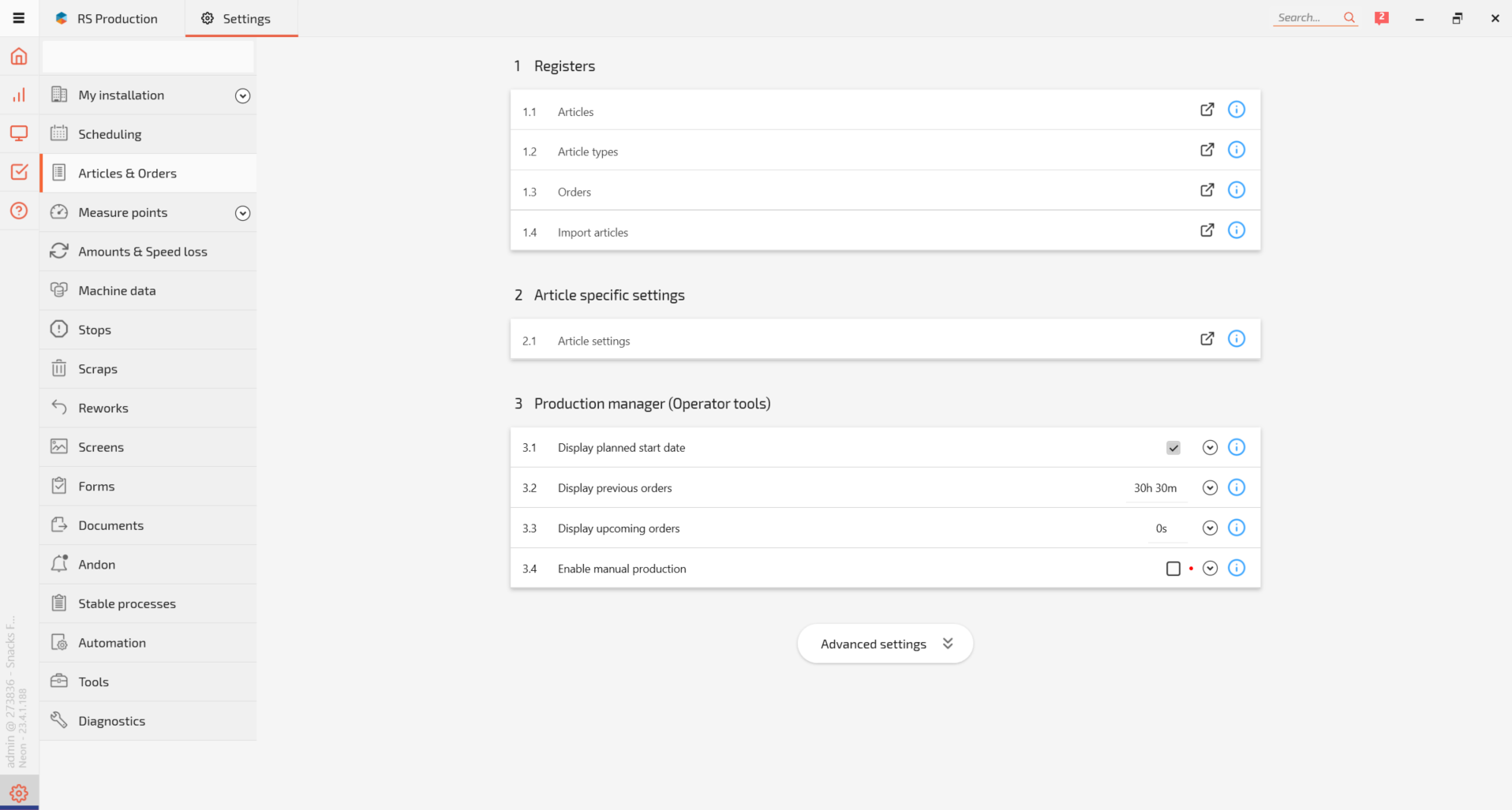
- Navigate to Settings → Articles & Orders.
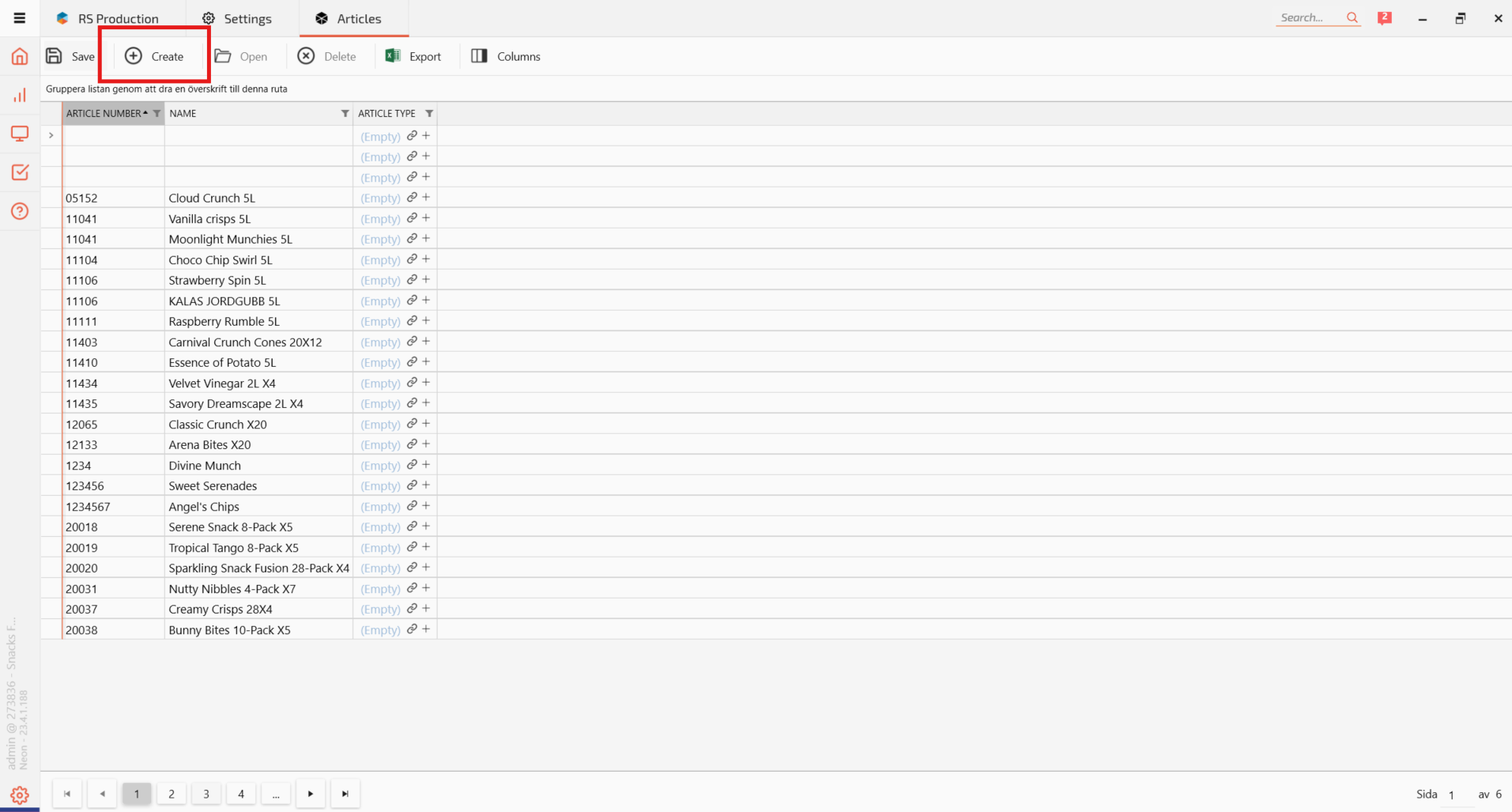
- Under Registers, open Articles.
- Click Create.
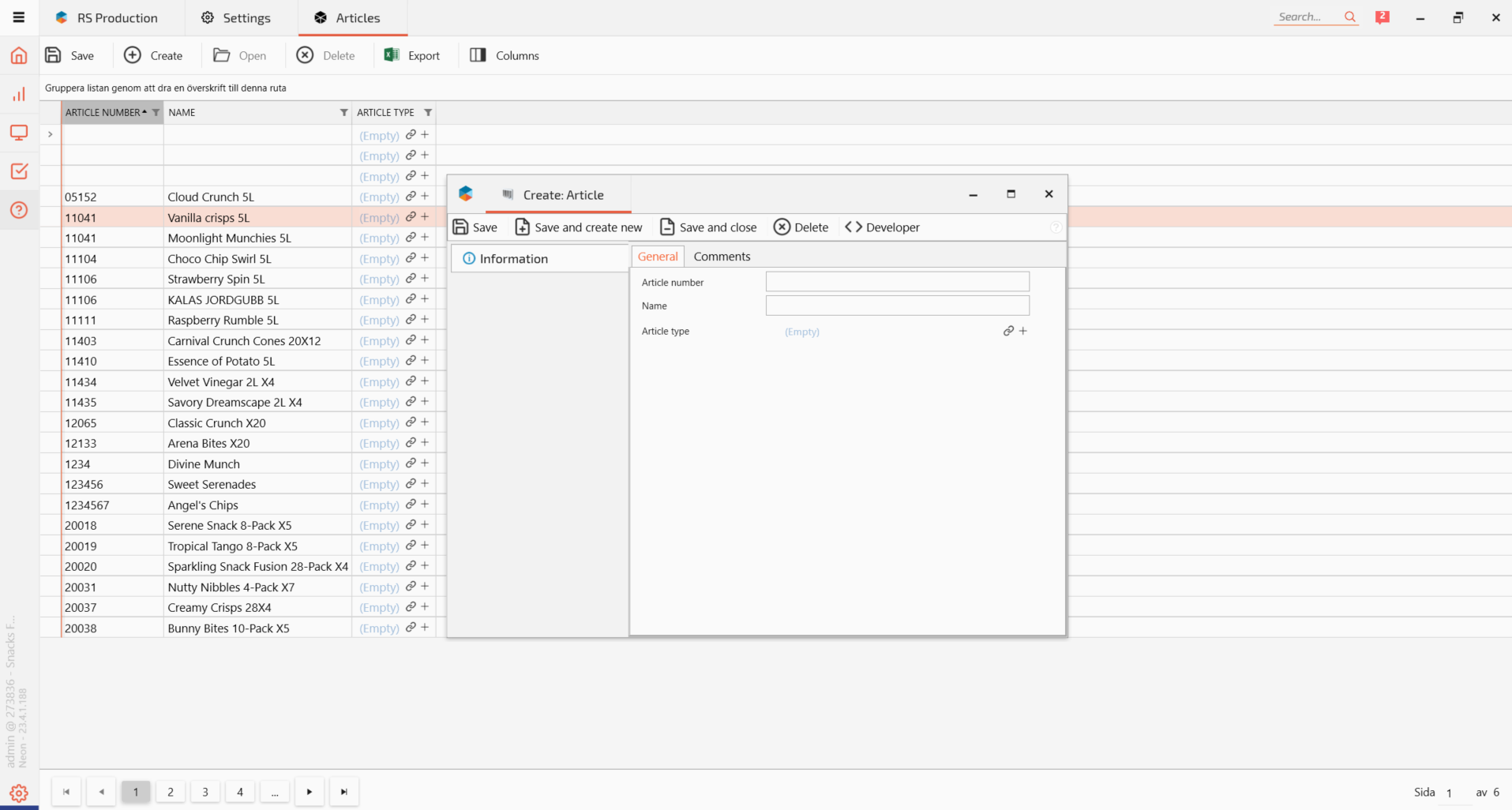
- Enter an Article Number.
- Enter a descriptive Name.
- Optionally, connect an Article Type.
- Click Save.
The Article has now been created.
Example
| Field | Example |
|---|---|
| Article Number | 100245 |
| Name | Product A – Standard |
| Article Type | Finished Product |
Article Types can be used to organize Articles into meaningful categories.
Tip: Use the same Article Numbers as your ERP or other production systems where possible. Consistent identifiers simplify integration and production analysis.
3. Connect the Article to Measure Points
After creating an Article, specify which Measure Points can produce it.
A Measure Point represents a production machine, line, or other monitored production resource.
Step-by-step instructions
- Open the Article in GS Desktop.
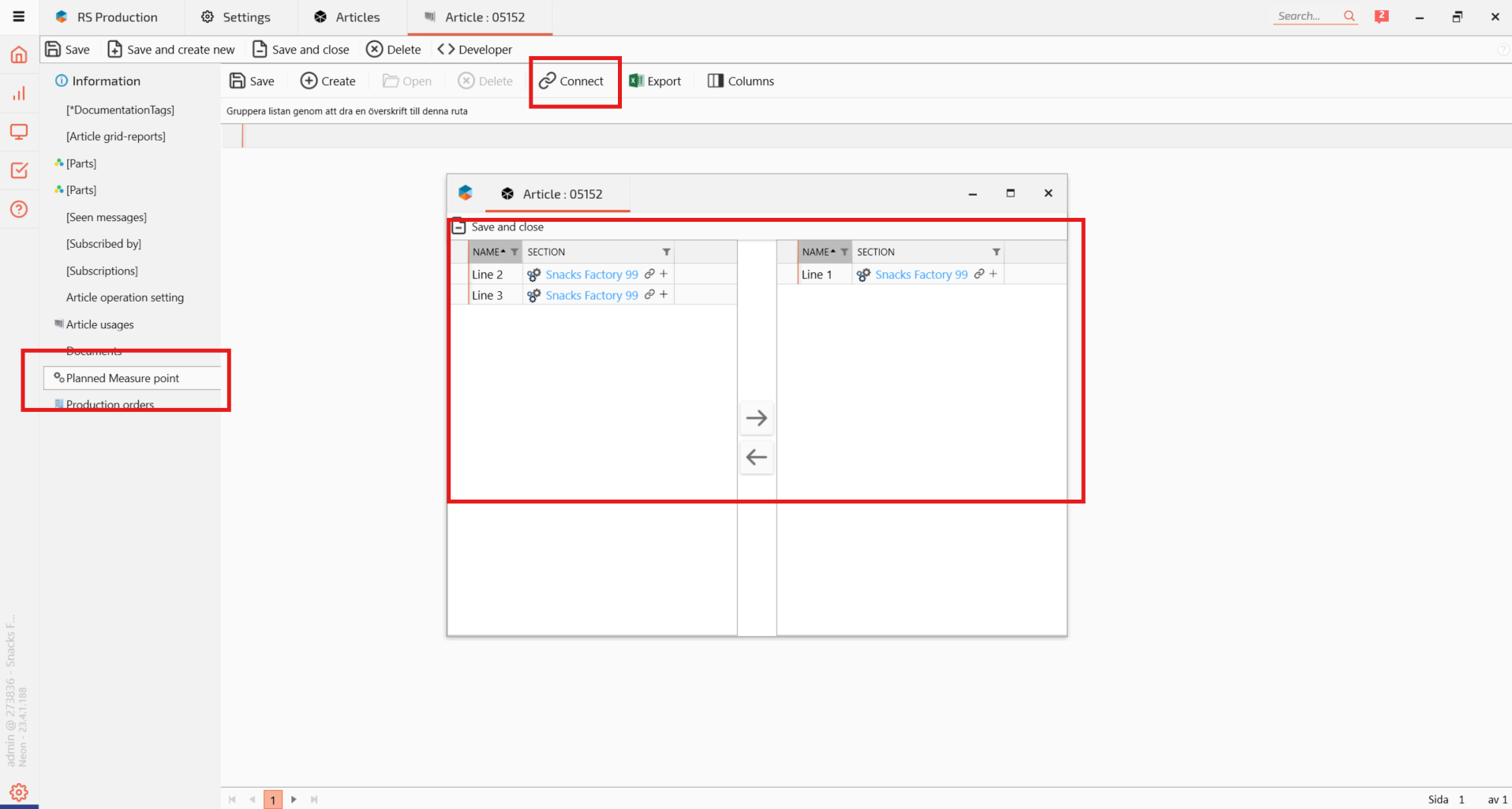
- Select Planned Measure Point from the left-hand menu.
- Click Connect.
- Find the Measure Point where the Article will be produced.
- Select the Measure Point and click the green arrow to add it.
- Repeat if the Article can be produced at multiple Measure Points.
- Click Save and close.
- Click Save and close again to finish editing the Article.
Example
An Article called Product A can be produced on two different production lines.
Connect it to:
- Assembly Line 01
- Assembly Line 02
This allows the Article to be associated with production on either Measure Point.
4. Configure Article Settings for OEE
Creating an Article is only the first step. You also need to configure the production settings used to calculate OEE.
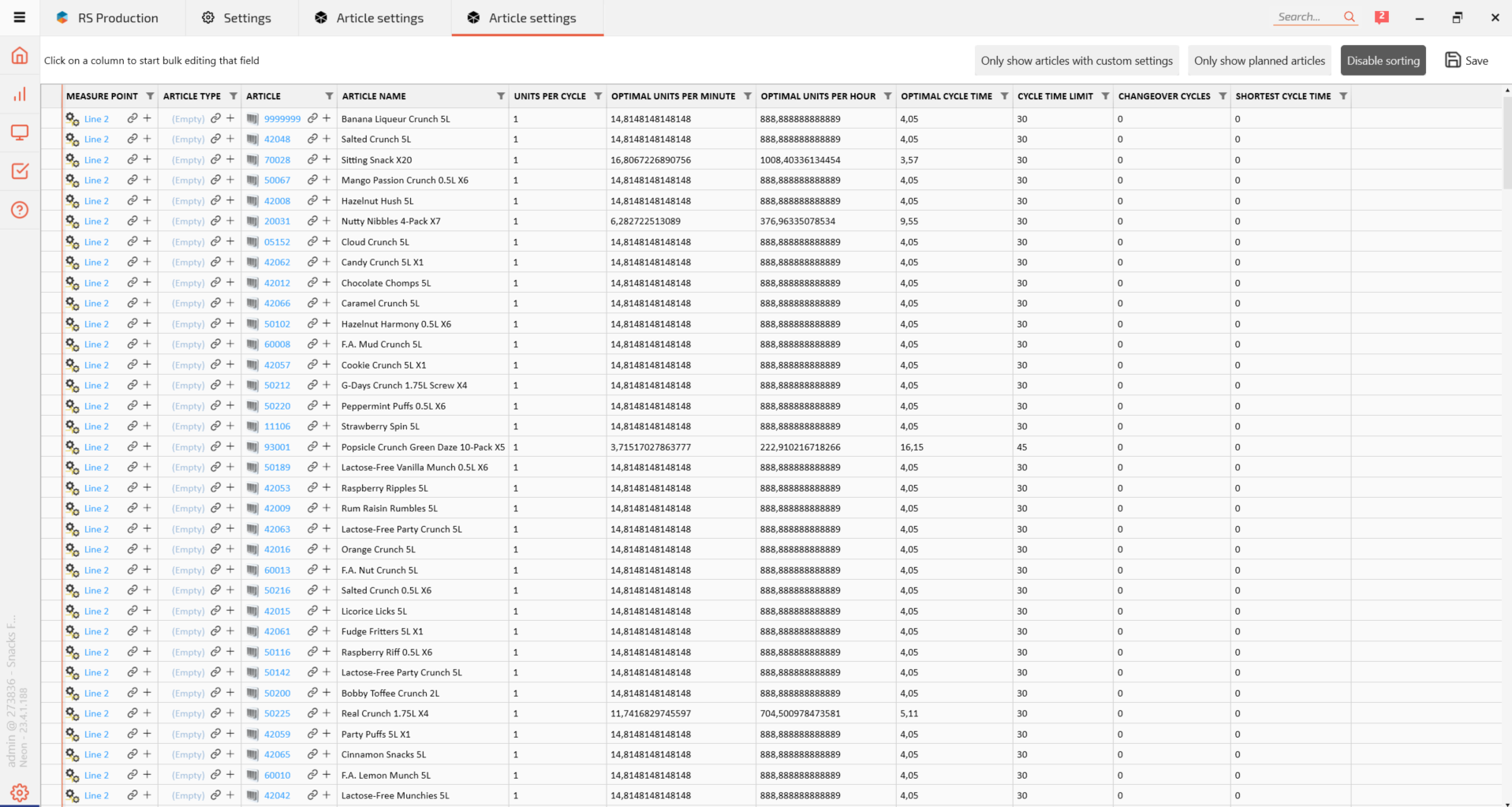
The main settings are:
| Setting | Description |
|---|---|
| Optimal Cycle Time | The expected time required to produce one cycle under optimal conditions |
| Longest Cycle Time / Cycle Time Limit | A configured limit used when evaluating production cycles |
| Units per Cycle | The number of units produced during one production cycle |
Units per Cycle can also be configured at Measure Point level.
These settings are important for calculating production performance accurately.
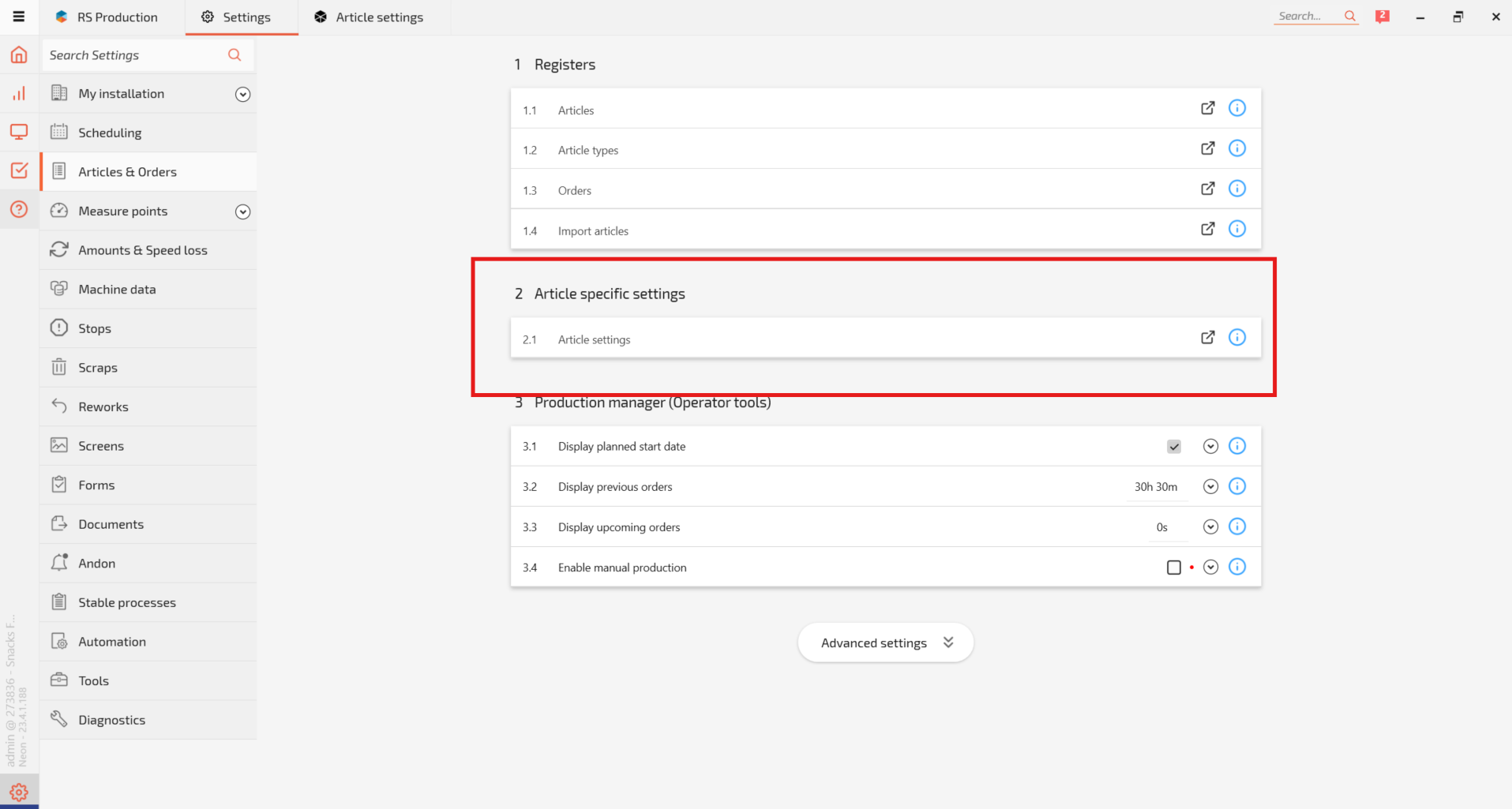
Step-by-step instructions
- Navigate to Settings → Articles & Orders.
- Under Article specific settings, open Article settings.
- Find the Article you want to configure. Use the column filters if necessary.
- Enter or update the relevant settings, such as Optimal Cycle Time and Units per Cycle.
- Click Save.
Update Settings for Multiple Articles
If several Articles require the same configuration:
- Open Article settings.
- Filter or select the relevant Articles.
- Select the column you want to update.
- Enter the desired value.
- Click Apply changes.
- Click Save.
Important: Incorrect cycle time settings can produce misleading Performance and OEE calculations. Make sure the values reflect the actual production process.
5. Create an Order Manually
Production Orders can be provided through an integration with another system or created manually in GS Desktop.
Manual Order creation is useful when you do not have an integration but still want to track production against individual Orders.
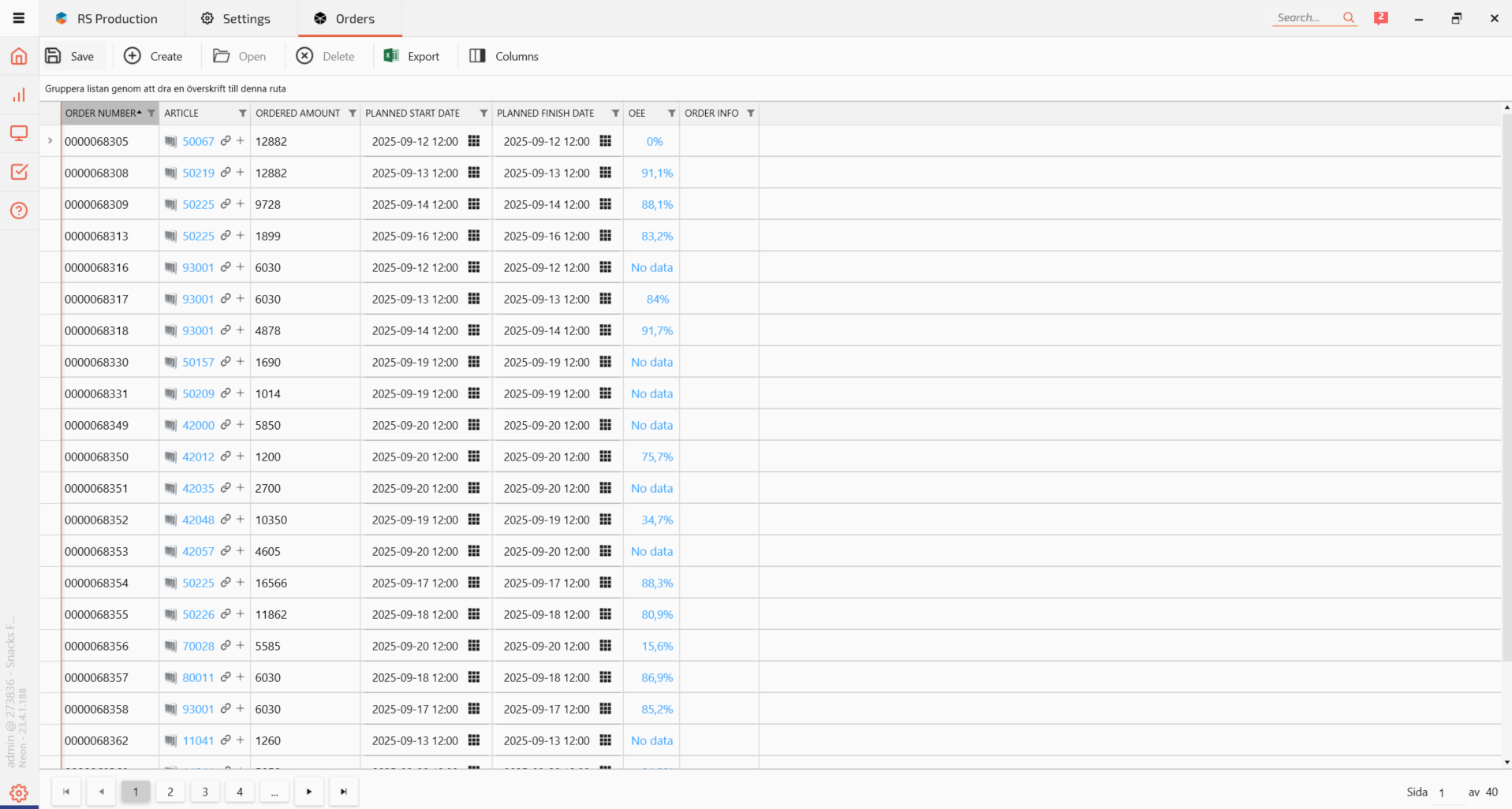
Step-by-step instructions
- Open GS Desktop.
- Navigate to Articles & Orders → Orders. In older versions of the desktop interface, this is located under Production → Orders.
- Click Create.
- Enter the Order Number.
- Optionally, connect an existing Article by clicking the connection icon beside Article.
- Select the Article and click Save and close.
- Enter any additional Order information, such as:
- Ordered Amount
- Planned Start Date
- Planned Finish Date
- Order Info
- Click Save.
Example: Creating a Production Order
| Field | Example |
|---|---|
| Order Number | 100245-01 |
| Article | Product A – Standard |
| Ordered Amount | 2,500 |
| Planned Start Date | December 1, 06:00 |
| Planned Finish Date | December 3, 14:00 |
The Order has now been created and can be connected to the relevant production resources.
6. Connect the Order to Measure Points
After creating an Order, you can specify where it is planned to be produced.
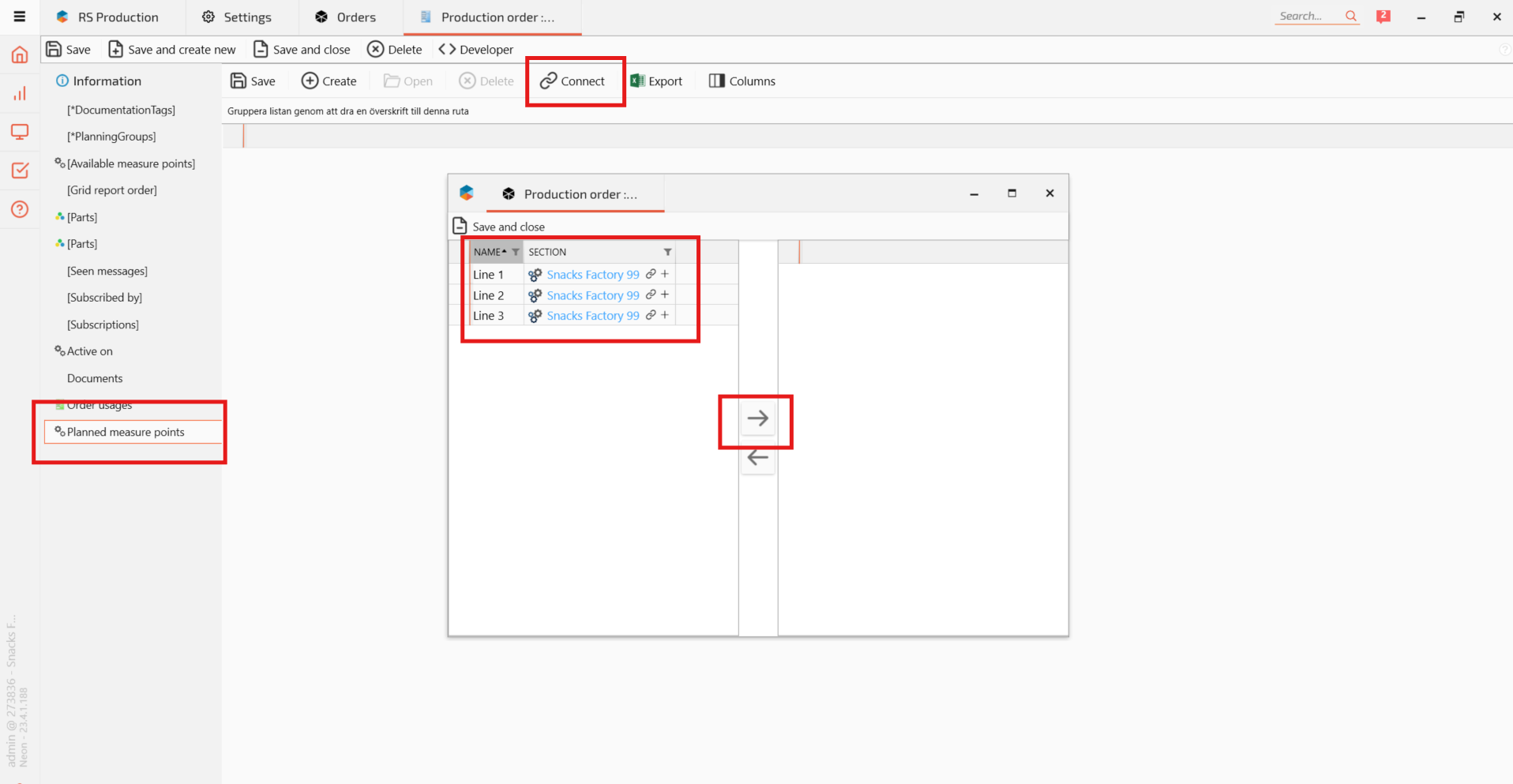
Step-by-step instructions
- Open the Order in GS Desktop.
- Select Planned measure points from the left-hand menu.
- Click Connect.
- Select the Measure Point where the Order will be produced.
- Click the green arrow to add it.
- Click Save and close.
- Click Save and close again to finish editing the Order.
The Order is now associated with the selected Measure Point.
Repeat the process when creating additional Orders.
7. Using an Eternal Article
In some production environments, individual production cycles are not measured.
For example, you may have equipment where:
- No cycle signal is available.
- Production quantities are not automatically collected.
- You only want to monitor equipment Availability.
In these situations, you can configure an Eternal Article.
An Eternal Article provides a way to run production monitoring without requiring normal Article changes.
For this configuration, the relevant production settings are maintained at Measure Point level rather than per Article.
This is particularly useful when the primary objective is to monitor running time, stops, and Availability rather than detailed production output.
Note: The detailed Eternal Article configuration is covered separately under Measure Point configuration.
8. Articles and Orders in Good Solutions Web
Once Articles and Orders are configured, they provide useful context throughout Good Solutions Web.
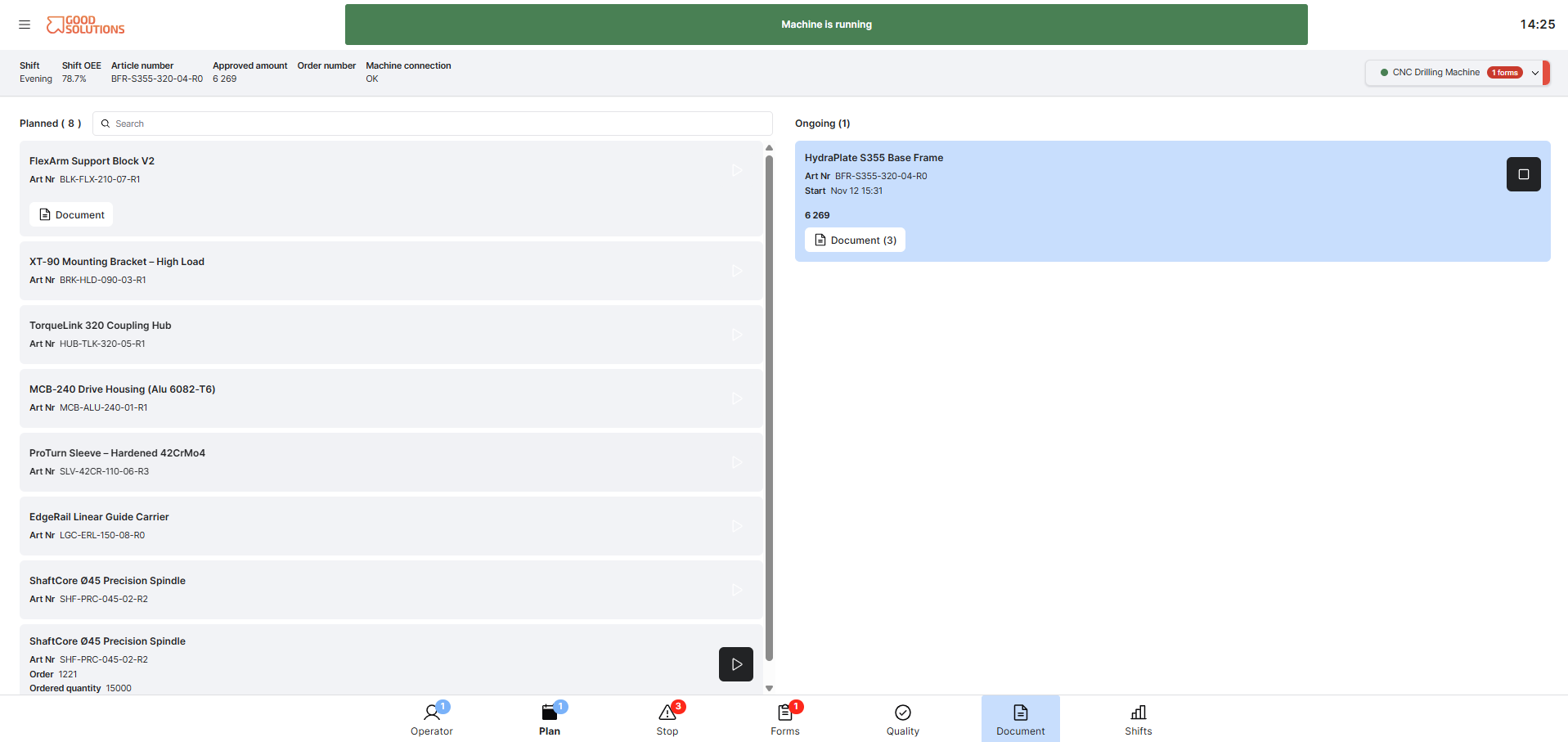
Operator Tools
Operators can work with production information associated with Articles and Orders, including:
- Viewing current and upcoming production.
- Starting and managing production runs.
- Recording Scrap and Rework.
- Accessing Documents associated with Articles or Orders.
- Completing Forms associated with production activities.
Dashboards and Reports
Articles and Orders also make it possible to analyze production from different perspectives.
For example, Production Managers can investigate:
- Which Articles have the highest or lowest OEE.
- Which Articles generate the most production losses.
- How individual Orders have performed.
- Production output and quality results for specific Articles or Orders.
This helps connect production performance to the products and assignments being manufactured.
9. Alternative Ways to Manage Articles and Orders
Manual configuration is not always necessary.
Depending on your installation and integrations, Articles and Orders may also be managed through:
- CSV Import: Import Article information from a CSV file.
- ERP Integration: Receive Orders from an external business system.
- OPC or MQTT: Support automatic Article or Order changes based on signals from connected production systems.
These options require additional configuration and are covered in separate documentation.
Best Practices
- Create Articles before Orders. This makes it easier to associate Orders with the correct products.
- Use consistent Article Numbers. Align identifiers with your other production systems.
- Configure accurate cycle times. Correct production settings are essential for meaningful OEE calculations.
- Connect Articles to the correct Measure Points. Only associate Articles with production resources where they can actually be manufactured.
- Use Orders when individual production tracking is needed. Orders provide additional context for quantities, dates, and production performance.
- Review Article settings regularly. Update them when production processes or expected cycle times change.
- Consider integration for larger installations. Automatic data exchange can reduce manual administration.
Key Takeaways
- Articles define what is manufactured, while Orders represent individual production assignments.
- Articles must be configured to support OEE calculations.
- Article settings include Optimal Cycle Time, Cycle Time Limit, and Units per Cycle.
- Articles and Orders can be connected to specific Measure Points.
- Orders can be created manually or managed through integrations.
- Eternal Articles can be used when cycle signals are unavailable or when monitoring Availability only.
- Correct configuration provides the foundation for production monitoring and analysis in Good Solutions Web.