
What Are Reason Codes?
Reason codes help you understand why production losses occur. They allow Operators to categorize losses so that Production Managers and improvement teams can identify recurring problems and prioritize improvements.
Good Solutions supports reason codes for different types of production losses, including:
- Stops: Reasons why production equipment is not running.
- Speed losses: Reasons why production is running slower than expected.
- Scrap: Reasons why produced items are rejected.
- Rework: Reasons why produced items require additional processing.
This article focuses on configuring Stop Reasons, Custom Categories, and folders in GS Desktop.
Once configured, Stop Reasons can be selected by Operators in Good Solutions Web – Operator Tools, and the resulting information can be analyzed through Dashboards and Reports.
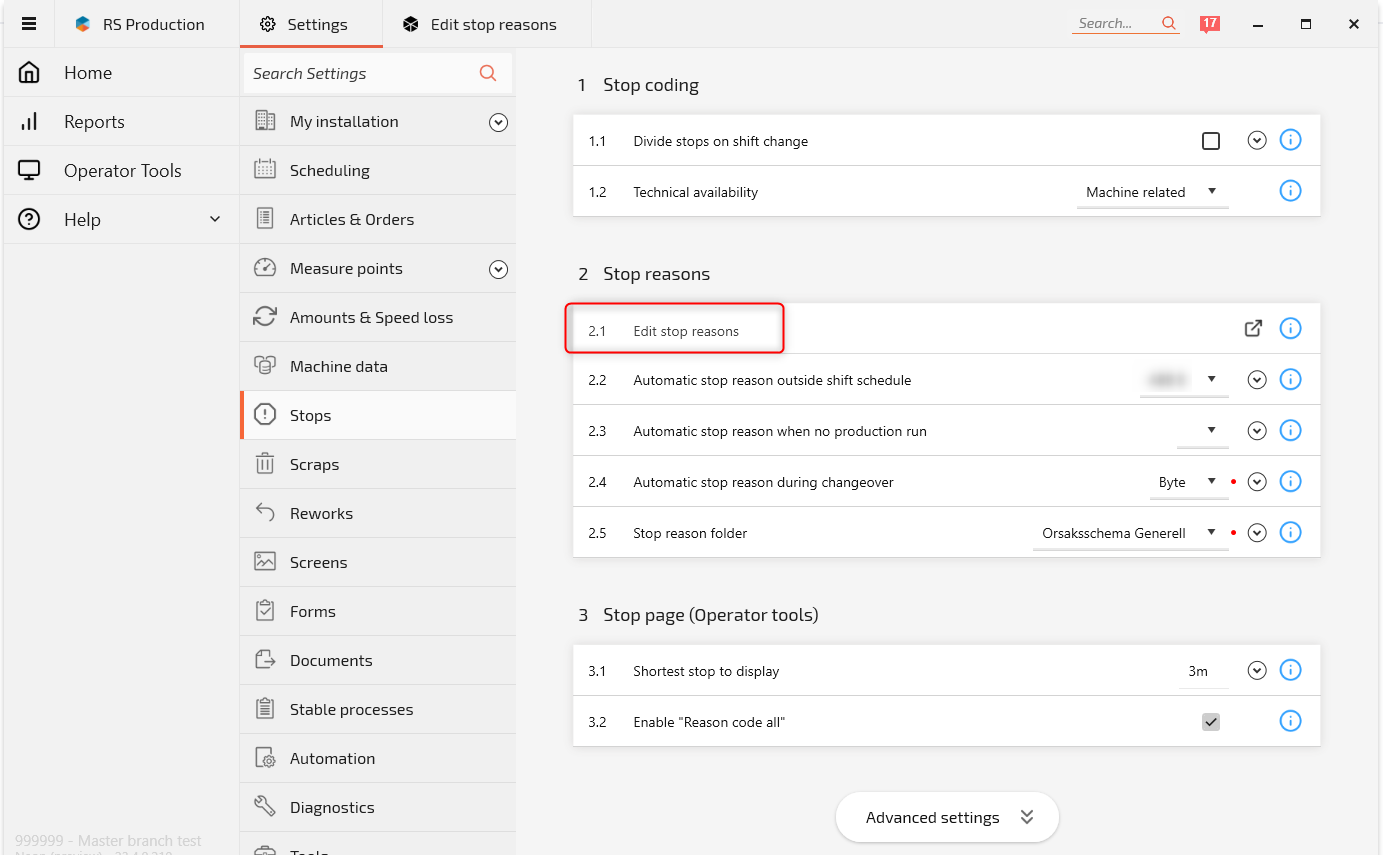
1. Create a New Stop Reason
Stop Reasons are configured in GS Desktop.
Step-by-step instructions
- Open GS Desktop and go to Settings.
- Select Stops.
- Click Edit stop reasons.
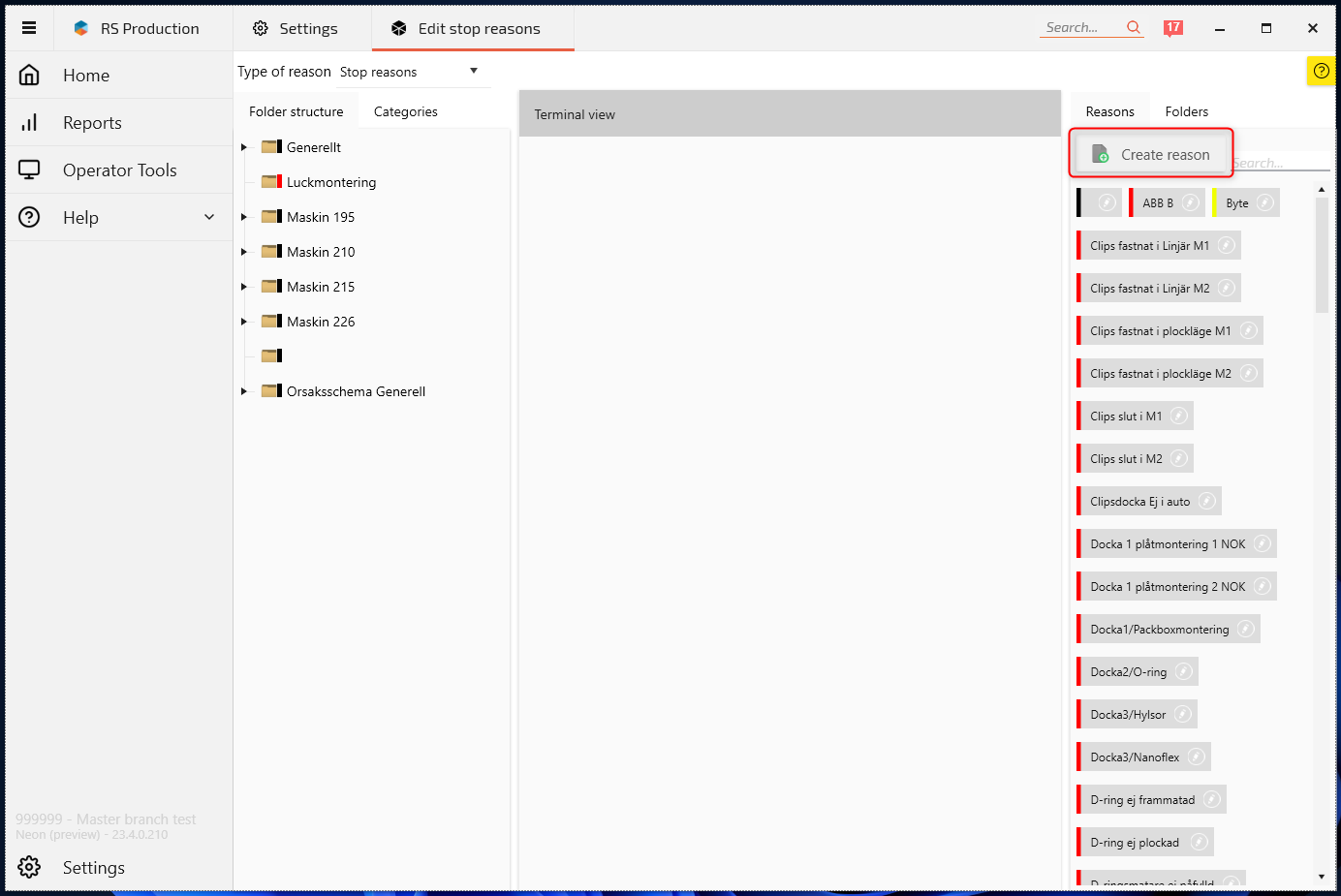
- Select the Reasons tab on the right side.
- Click Create reason.
- Enter the reason name and configure its properties.
- Click Save and close.
Configure the Stop Reason Properties
The following settings are available when creating a Stop Reason:
| Setting | Description |
|---|---|
| Reason name | The name displayed to Operators and used in reporting. |
| Information | Additional instructions or explanations, accessible through an information icon in Operator Tools. |
| Color | The color associated with the Stop Reason in relevant visualizations. |
| Sort order | Determines the order in which reasons appear to Operators. Lower numbers appear higher in the list. |
| Force comment | Requires Operators to enter a comment when selecting the reason. |
| Standard Category | Mandatory classification assigned to the Stop Reason. |
| Responsible team | Mandatory field identifying the team responsible for the reason. |
| Choose Station | Provides an option for the Operator to select a station. |
| Technical availability | Identifies the reason as a technical availability loss for the relevant calculation. |
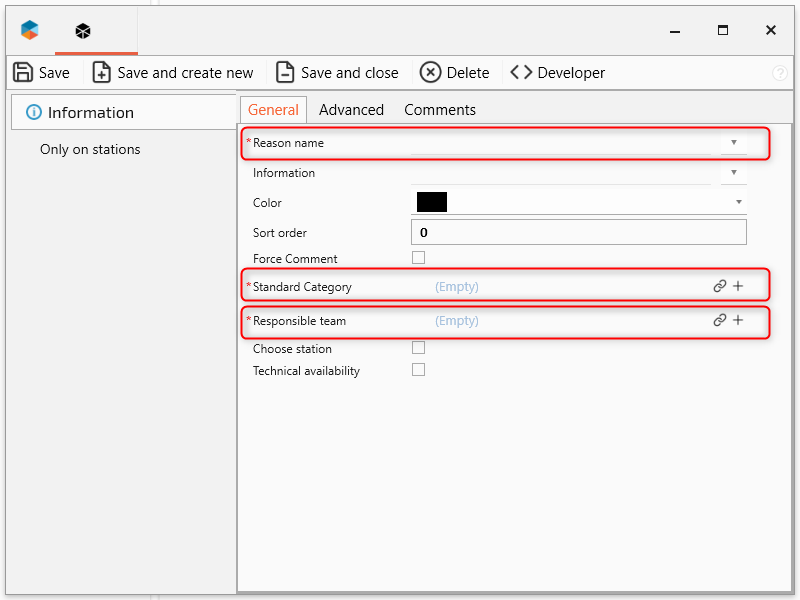
Additional options are available under Advanced, including comments and restrictions on which stations a Stop Reason applies to.
Example: Creating a Machine Breakdown Reason
Suppose a production line regularly experiences mechanical failures.
You could create a Stop Reason with the following configuration:
| Setting | Example |
|---|---|
| Reason name | Mechanical Breakdown |
| Information | Select when production is stopped because of a mechanical equipment failure. |
| Color | Red |
| Force comment | Enabled |
| Standard Category | Appropriate breakdown category |
| Responsible team | Maintenance |
| Technical availability | Enabled |
With Force comment enabled, Operators must describe the problem when selecting this reason.
This can provide valuable information for maintenance follow-up and recurring problem analysis.
Tip: Use clear, specific reason names that Operators can easily recognize. Avoid creating multiple reasons that describe essentially the same problem.
2. Understand Standard Categories and Custom Categories
Categories make it possible to group individual Stop Reasons into broader types of production losses.
For example, several Stop Reasons might belong to a single Maintenance-related category.
Good Solutions distinguishes between:
- Standard Categories: Predefined classifications associated with Stop Reasons.
- Custom Categories: Customer-defined categories used to organize Stop Reasons according to the factory's reporting and analysis needs.
Custom Categories are particularly useful when you want to analyze losses across multiple machines or departments using a consistent classification structure.
Note: The original GS Desktop documentation states that Standard Categories were not connected to reporting at the time it was written. Custom Categories were therefore used for report grouping. This historical behavior should be verified against your current installation.
3. Create a Custom Category
Custom Categories allow you to group Stop Reasons according to your organization's needs.
Step-by-step instructions
- In GS Desktop, navigate to Settings → Stops → Edit stop reasons.
- Select the Categories tab on the left side.
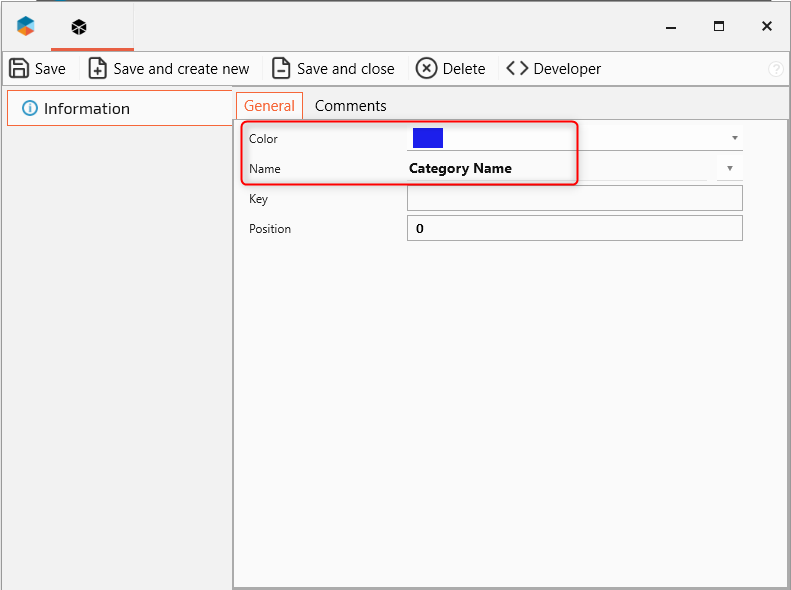
- Click Create a new category.
- Enter a category name.
- Select a color.
- Click Save and close.
The new category is now available in the category list.
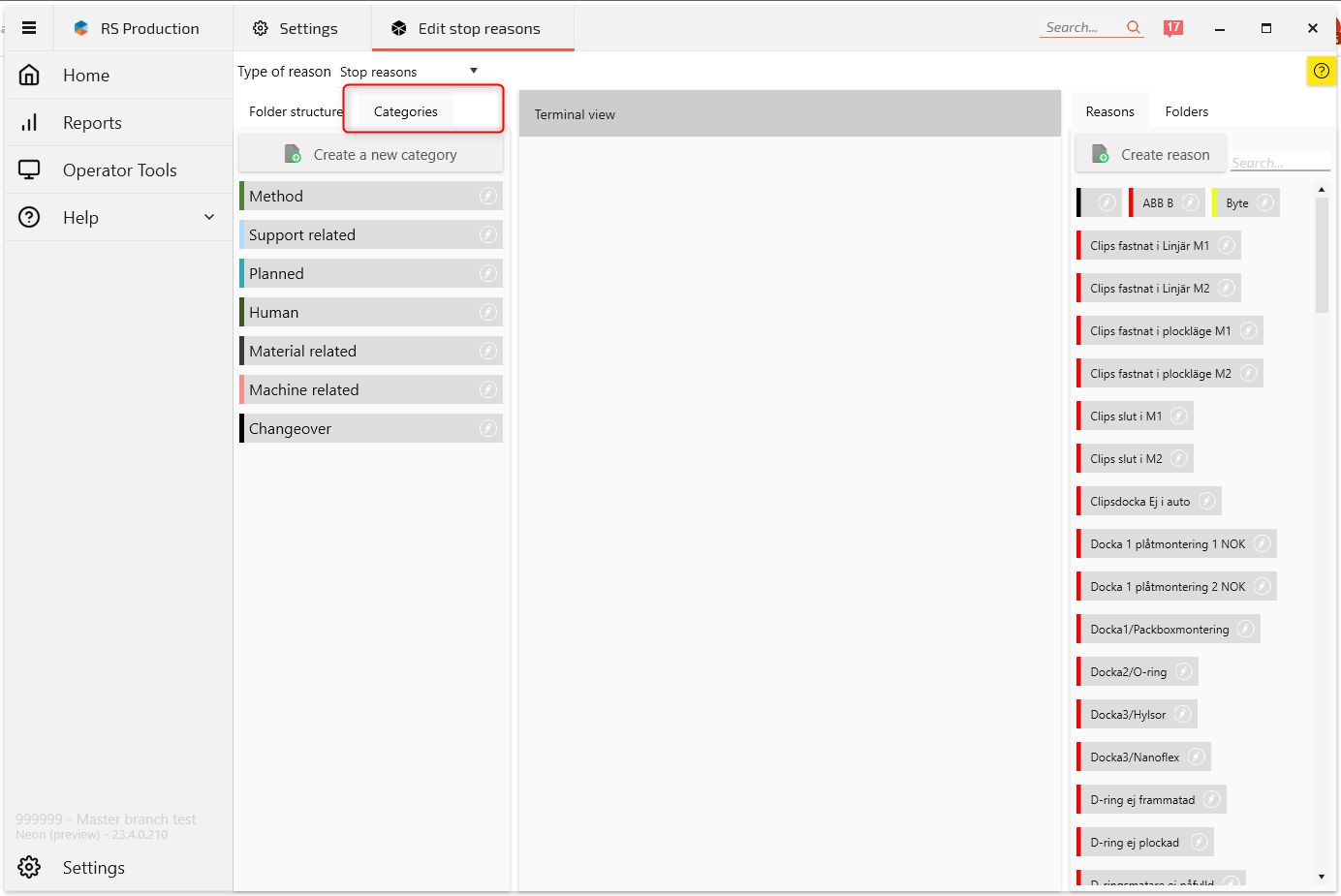
Example: Organizing Maintenance Losses
A factory might create the following Custom Categories:
| Custom Category | Example Stop Reasons |
|---|---|
| Mechanical | Bearing failure, Conveyor breakdown, Tool damage |
| Electrical | Sensor failure, Motor fault, Electrical fault |
| Material | Material shortage, Incorrect material |
| Operational | Waiting for Operator, Setup delay |
| Planned | Planned maintenance, Scheduled cleaning |
These are illustrative categories. The appropriate structure depends on how your factory wants to analyze its production losses.
4. Assign Stop Reasons to Custom Categories
After creating a Custom Category, you need to associate the relevant Stop Reasons with it.
Step-by-step instructions
- Open Edit stop reasons.
- Select the Categories tab on the left.
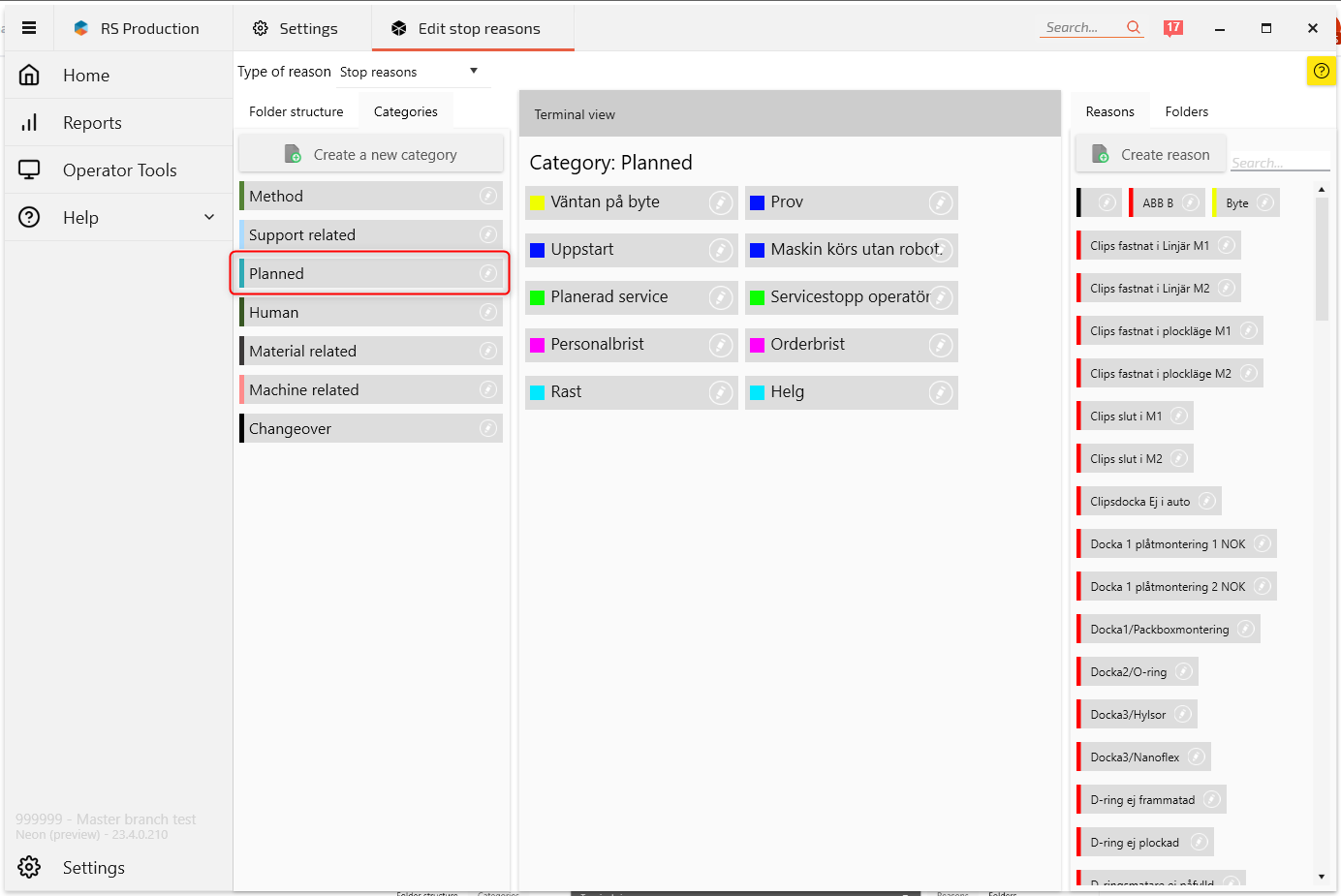
- Select the category you want to configure.
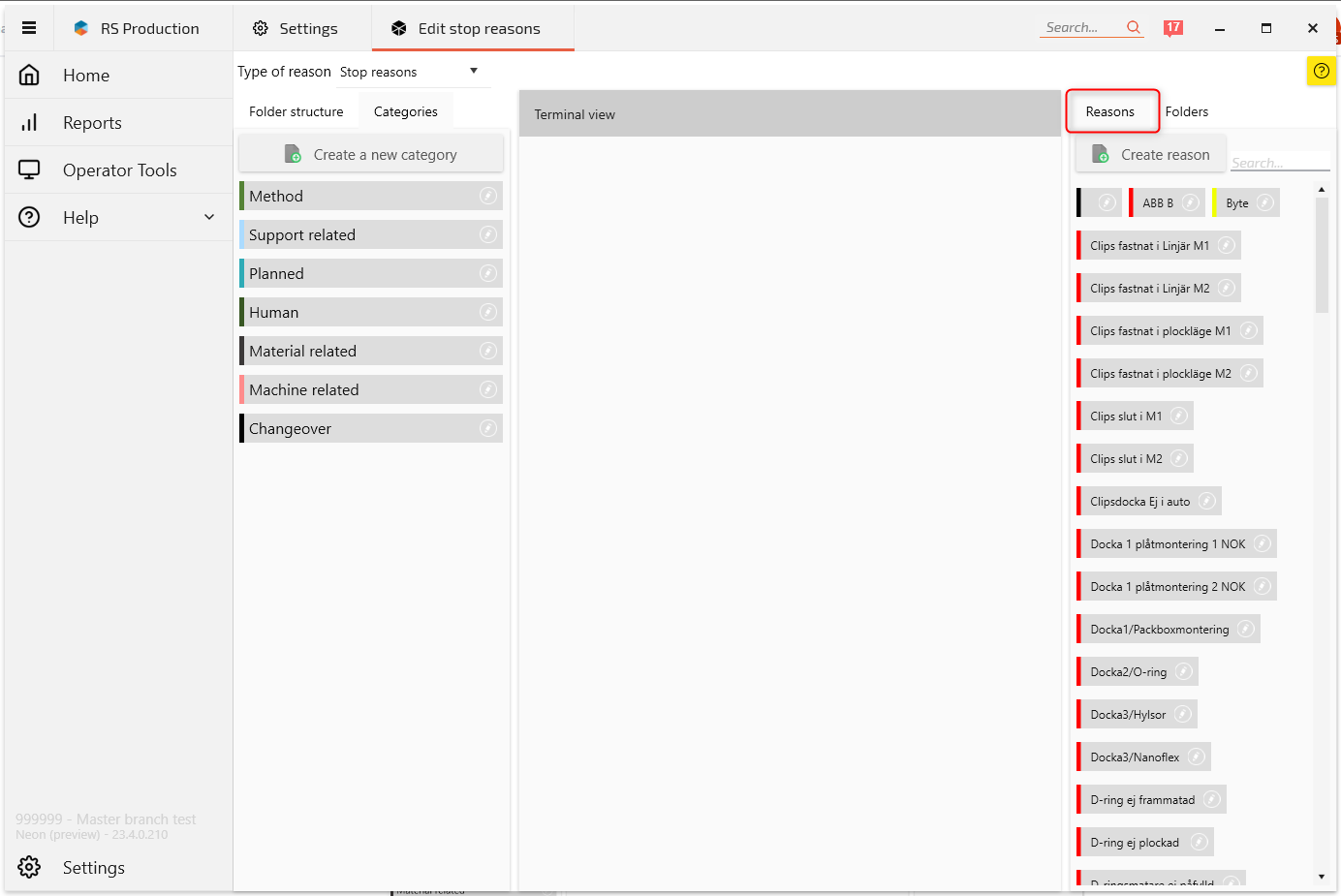
- Select the Reasons tab on the right.
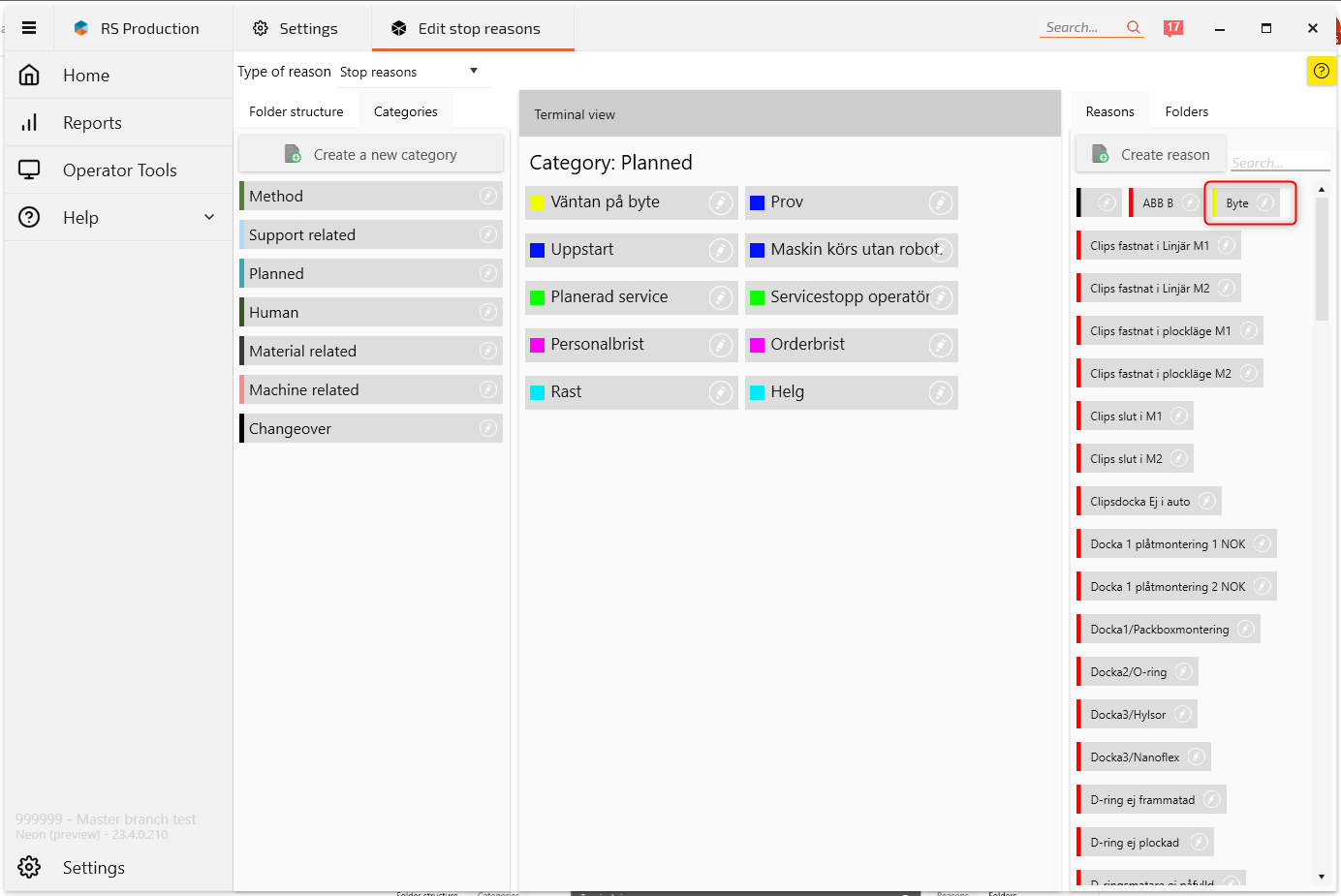
- Find the Stop Reason you want to associate with the category.
- Click the Stop Reason to add it to the selected category.
- Repeat for additional Stop Reasons.
The selected reasons will appear under the category.
Example
You create a Custom Category called Mechanical.
You then add:
- Bearing failure
- Conveyor breakdown
- Tool damage
When analyzing production losses by Custom Category, these individual Stop Reasons can be grouped together.
This helps answer questions such as:
How much production time are we losing because of mechanical problems?
Tip: Agree on your category structure before creating large numbers of Stop Reasons. A consistent structure makes comparisons between Measure Points more useful.
5. Organize Stop Reasons into Folders
Folders provide a structured way to organize Stop Reasons for Operators.
They are particularly useful when a factory has many reasons and needs to make it easier for Operators to find the correct one.
For example, instead of displaying a long list of individual reasons, you can organize them into folders such as:
- Machine Problems
- Material Problems
- Setup & Changeover
- Other Production Stops
Folders can also contain subfolders.
Create a New Folder
- Navigate to Settings → Stops → Edit stop reasons.
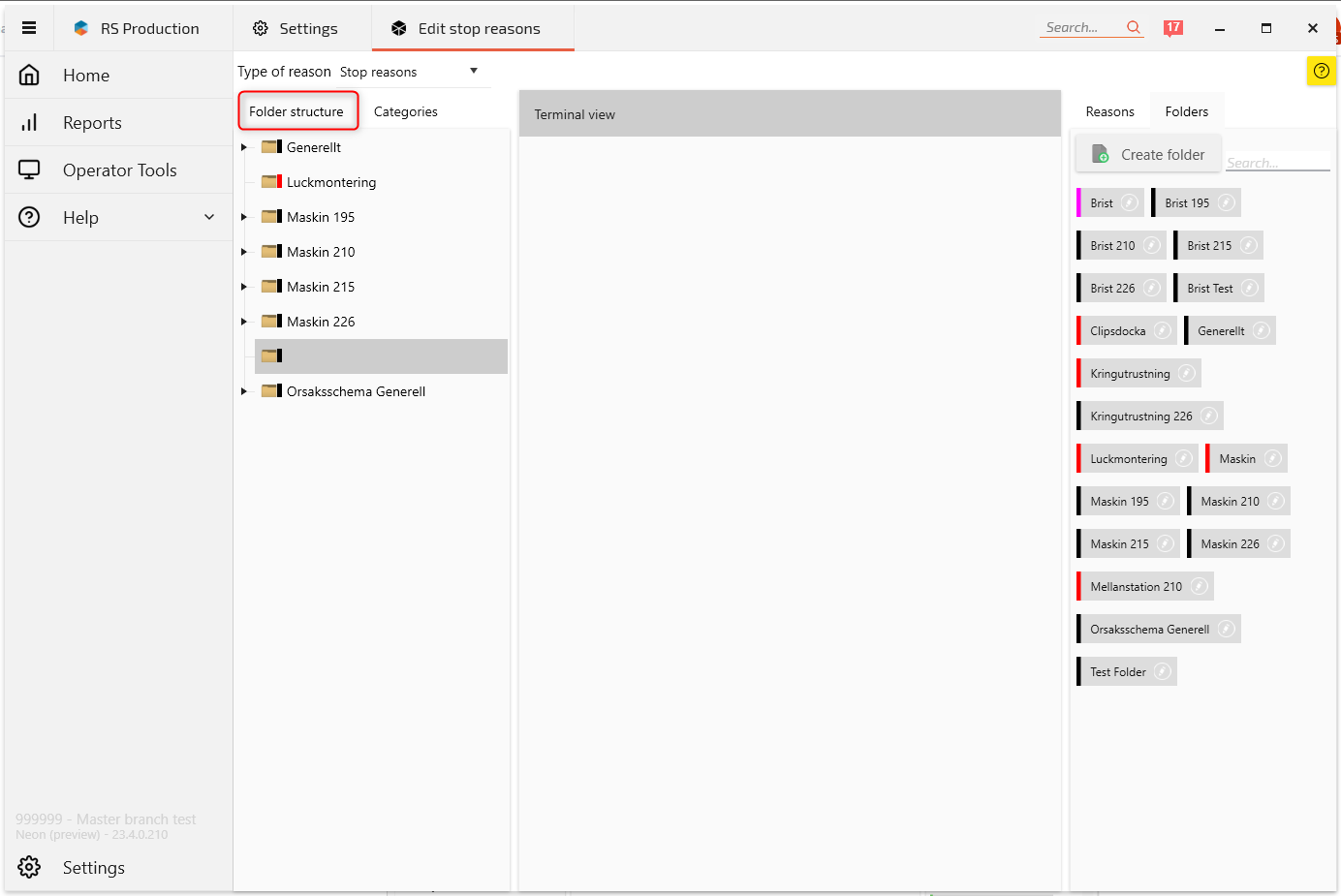
- Select Folder structure.
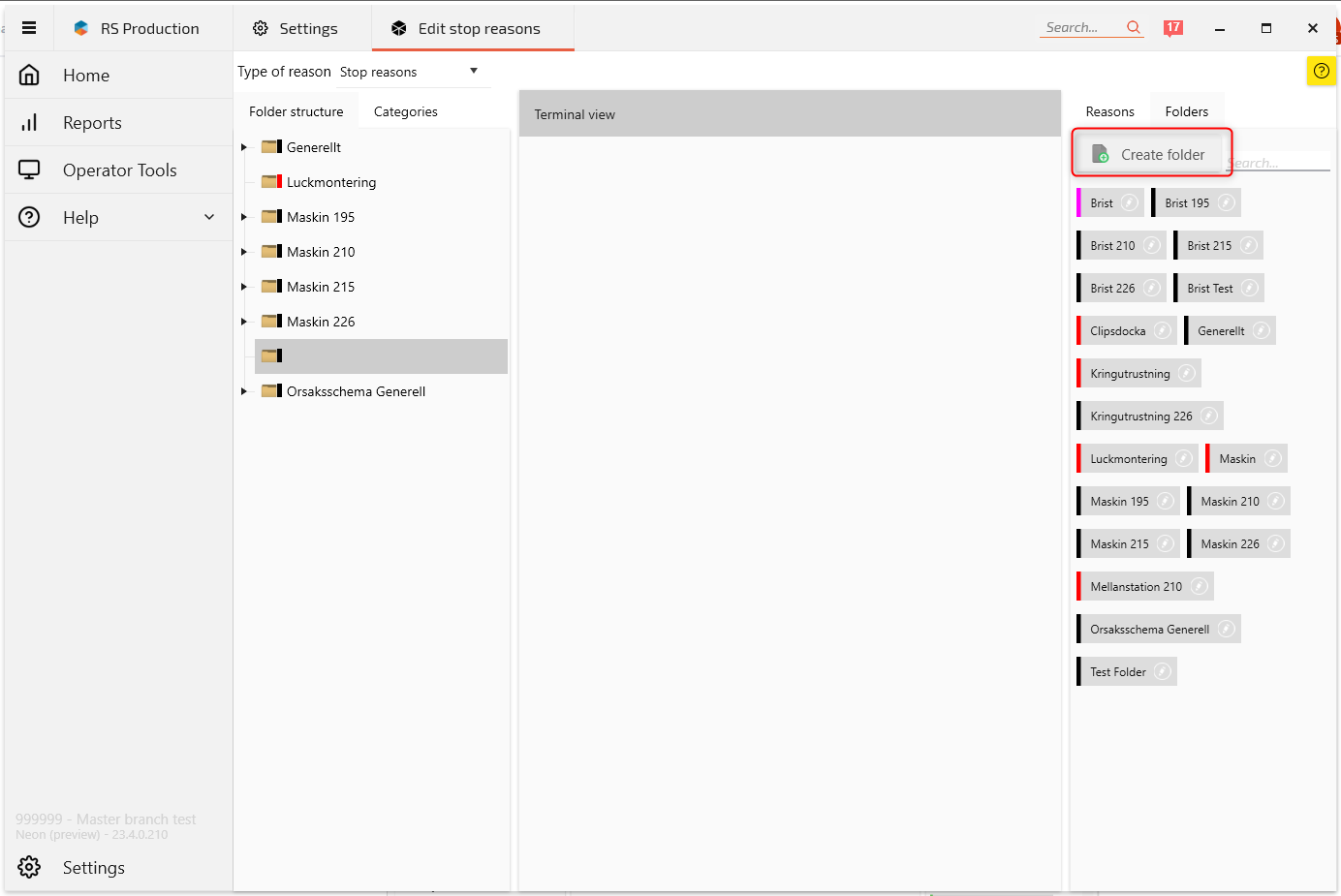
- Select the Folders tab on the right.
- Click Create folder.
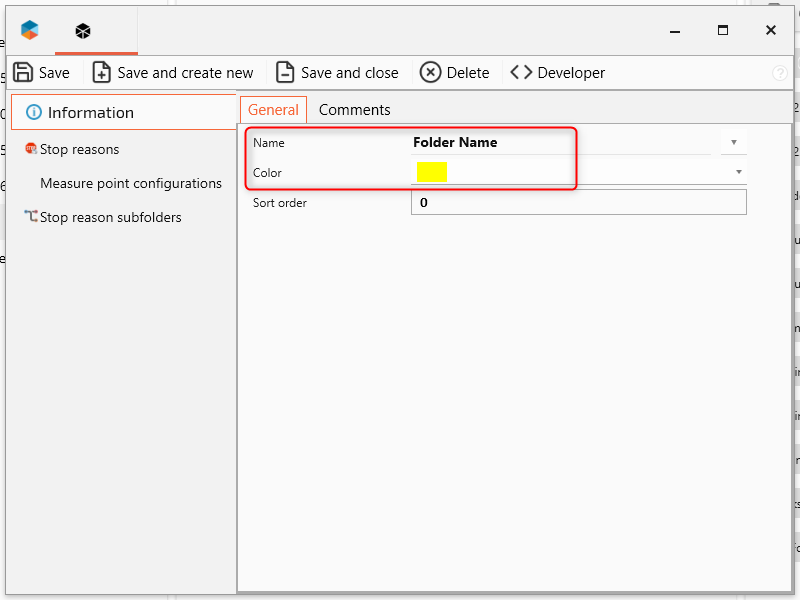
- Enter a folder name and select a color.
- Save the folder.
Create Subfolders
To organize folders into a hierarchy:
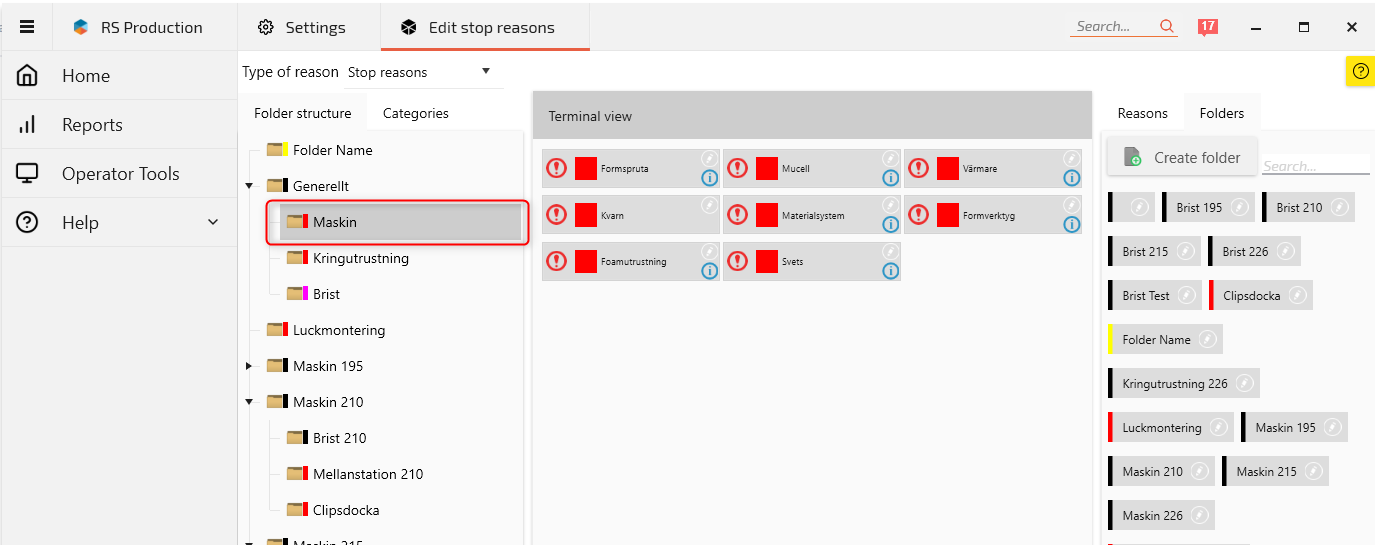
- Select the intended parent folder in the left panel.
- Find the folder you want to add in the right panel.
- Click the folder to place it under the selected parent.
Repeat to build the required folder structure.
Add Stop Reasons to Folders
- Select the folder in the left panel.
- Open the Reasons tab on the right.
- Use the search field to find the relevant Stop Reason.
- Click the Stop Reason to add it to the selected folder.
- Repeat for additional reasons.
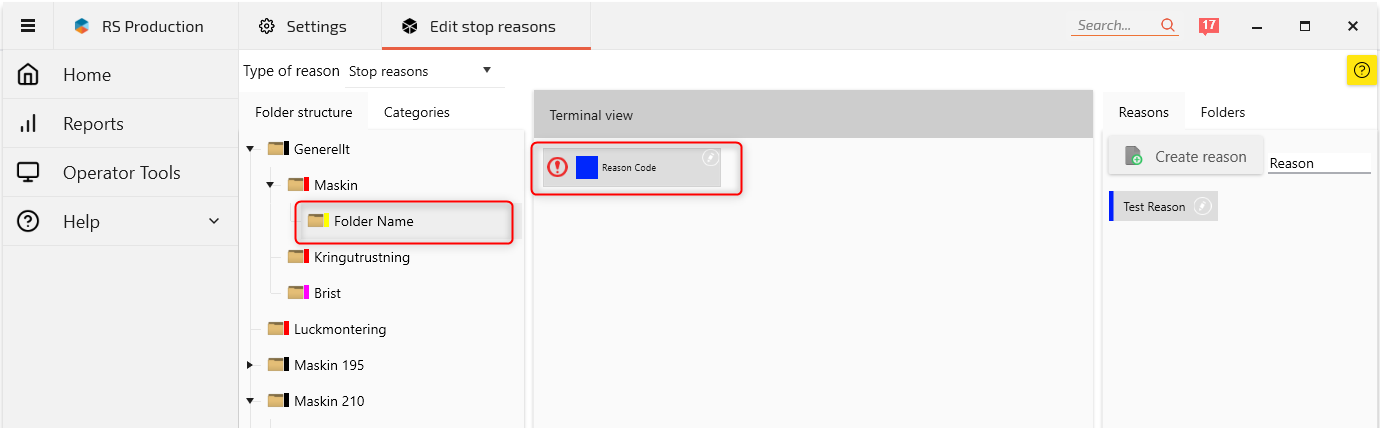
Example Folder Structure
Machine Problems
- Mechanical
- Bearing failure
- Conveyor breakdown
- Tool damage
- Electrical
- Sensor failure
- Motor fault
Material Problems
- Material shortage
- Incorrect material
Operational
- Waiting for Operator
- Setup delay
This structure helps Operators navigate to the correct reason without searching through every available code.
6. Folders vs. Custom Categories
Although folders and Custom Categories both organize Stop Reasons, they serve different purposes.
| Folders | Custom Categories | |
|---|---|---|
| Primary purpose | Help Operators find and select Stop Reasons. | Group Stop Reasons for analysis and reporting. |
| Structure | Hierarchical, with folders and subfolders. | Customer-defined categories. |
| Typical use | Organizing reasons by machine, department, or problem type. | Analyzing recurring types of production losses. |
Example: An Operator selects the reason Bearing failure from a folder called Mechanical.
That Stop Reason can also belong to a Custom Category called Maintenance-related losses.
The folder helps the Operator find the reason, while the Custom Category helps Production Managers analyze the resulting losses.
7. Verify Your Configuration
After creating Stop Reasons, categories, and folders, verify that everything works as intended.
- Open Operator Tools in Good Solutions Web.
- Select a production stop that needs categorization.
- Open the Stop Reason selection.
- Check that the folder structure is understandable.
- Verify that the correct Stop Reasons are available.
- Select a reason and confirm that its information and comment requirements behave as expected.
- Review the resulting information in the relevant Dashboards or Reports.
Also verify that the configured Custom Categories produce the expected groupings when analyzing Availability losses.
Best Practices
- Keep reason names clear. Operators should understand when to use each reason.
- Avoid too many reasons. An overly detailed list makes correct categorization more difficult.
- Use consistent categories. Apply the same classification principles across production areas.
- Require comments selectively. Use mandatory comments when additional context is genuinely valuable.
- Organize folders around Operator needs. The folder structure should make finding the correct reason fast and intuitive.
- Review uncoded stops regularly. High levels of uncoded stop time make loss analysis less reliable.
- Review the structure periodically. Remove unnecessary complexity and improve classifications as production processes evolve.
Key Takeaways
- Reason codes explain why production losses occur.
- Stop Reasons are configured in GS Desktop and used by Operators in Good Solutions Web.
- Custom Categories help group Stop Reasons for reporting and analysis.
- Folders and subfolders make Stop Reasons easier for Operators to find.
- Clear names, consistent categories, and a simple folder structure improve the quality of production loss data.