
What Is Single Sign-On (SSO)?
Single Sign-On (SSO) allows users to log in to Good Solutions using their organization's existing authentication solution, such as Microsoft Entra ID.
Instead of managing a separate password for Good Solutions, users can authenticate through their organization's identity provider.
As an SSO Administrator, you are responsible for inviting users who should be able to access Good Solutions through SSO.
How to Invite Users to SSO
Step 1: Log In to Good Solutions
- Open app.goodsolutions.se.
- Log in using your existing credentials.
- Select the installation you want to manage.
Step 2: Open User Administration
- Open the left-hand navigation menu.
- Select Edit Users to access the user administration page.
Here you can see the users associated with your installation, including their assigned roles and invitation status.
Step 3: Find the User
Use the search field to locate the user you want to invite.
If the user is missing:
- Log in to RS Production.
- Create the new user in RS Production.
- Return to Good Solutions and open the user list again.
- Find the newly created user.
Step 4: Send an SSO Invitation
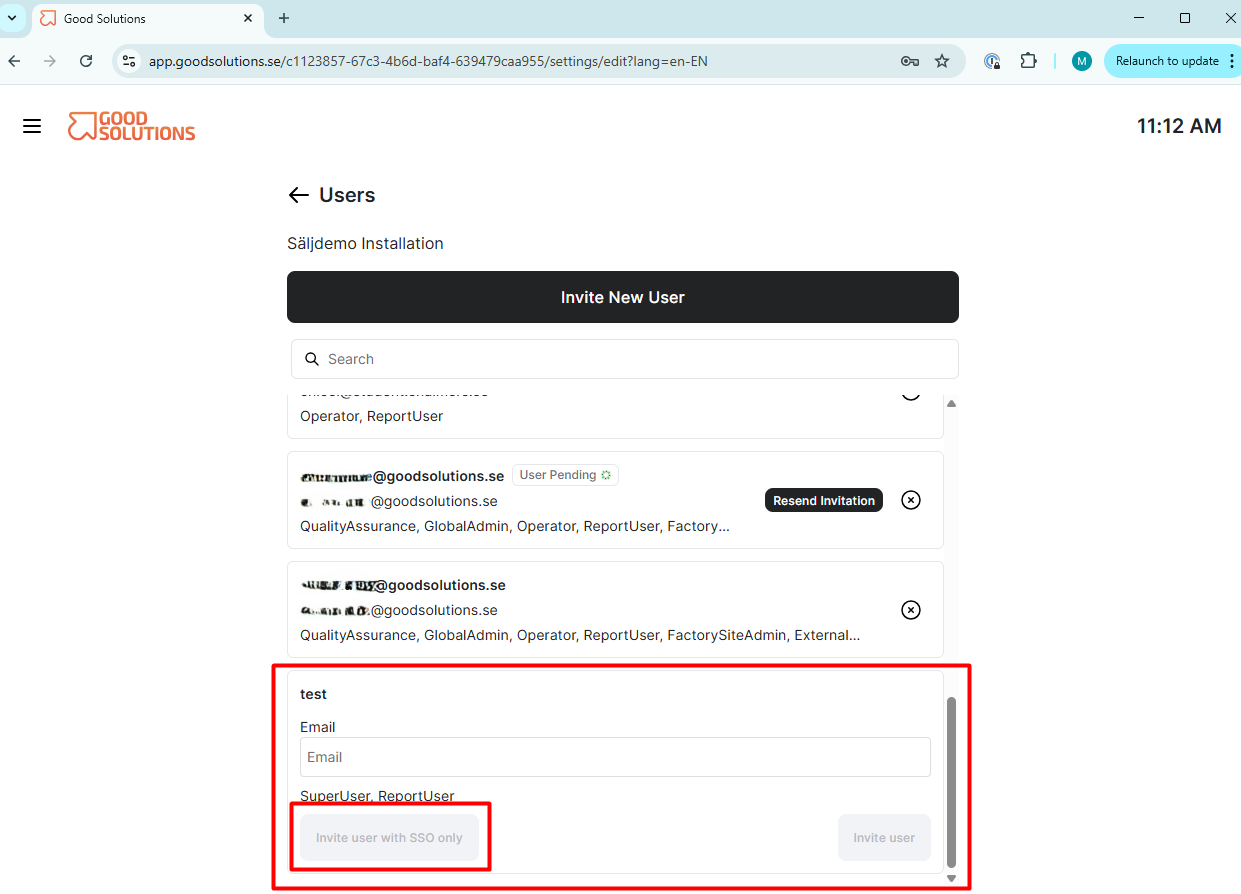
- Find and expand the user in the list.
- Check that the user's email address is correct. Enter it if it is missing.
- Click Invite user with SSO only.
- The user will receive an invitation to access Good Solutions through SSO.
Important: Select Invite user with SSO only when the user should authenticate exclusively through your organization's SSO solution.
Step 5: Manage Pending Invitations
Users who have not yet completed their invitation may be displayed with the status User Pending.
If a user has not received or completed their invitation:
- Find the user in the list.
- Click Resend Invitation.
- Ask the user to check their email inbox.
What Happens Next?
Once invited, your colleagues can follow the instructions for signing in using SSO.
Share the following guide with them:
Troubleshooting
| Problem | Recommended Action |
|---|---|
| User is missing from the list | Create the user in RS Production, then return to Good Solutions. |
| SSO invitation button is disabled | Check that the user has a valid email address and that the required information is complete. |
| User has not received the invitation | Use Resend Invitation and ask the user to check their spam folder. |
| User cannot log in using SSO | Verify that the correct email address was used and contact your organization's SSO administrator if necessary. |