
What are Forms in Operator Tools?
Forms in Operator Tools allow Operators to complete digital checklists, quality inspections, safety checks, and other production-related procedures directly from their workstation.
Forms help standardize daily routines, collect important production information, and ensure that inspections and checks are completed at the right time.
There are two ways to access Forms in Operator Tools:
- Automatically triggered Forms: Forms that appear when a configured production event occurs, such as starting an order, changing shifts, or reaching a defined production quantity.
- Manually started Forms: Forms that Operators can choose to start whenever needed, provided they are available for the selected Measure Point.
Step 1: Select your Measure Point
- Open Operator Tools in Good Solutions.
- Make sure the correct Measure Point is selected.
- In the Forms tab in Operator Tools, check whether any Forms require your attention.
Forms are associated with specific Measure Points, ensuring that Operators receive Forms relevant to their production equipment or work area.
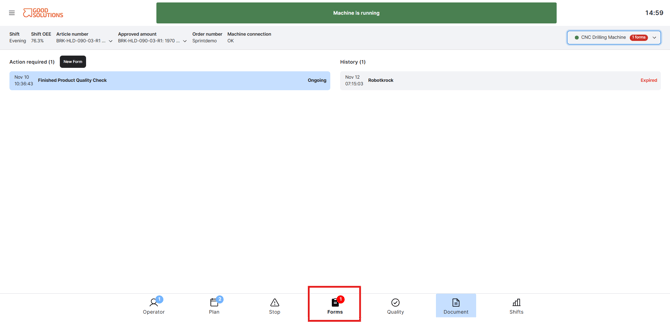
Step 2: Receive an automatically triggered Form
When a production event activates a Form Trigger, Good Solutions automatically notifies Operators working at the relevant Measure Point.
A pop-up window appears showing the Forms that require attention.
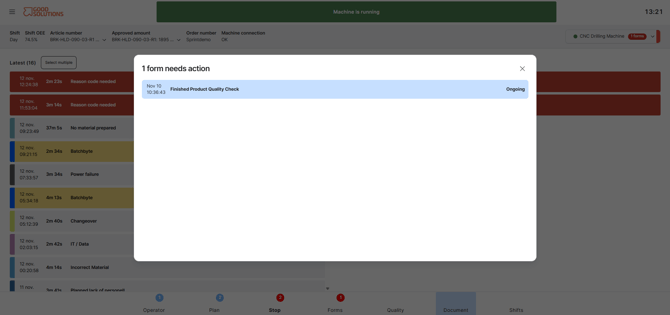
The window displays:
- Form name: Identifies which Form needs to be completed.
- Date and time: Shows when the Form was triggered.
- Status: Indicates whether the Form is Ongoing, Delayed, or another applicable status.
If multiple Forms require attention, they can be displayed together in the pop-up.
If there are Forms that require attention on other measure points that the operator has access to, this is highlighted at the top of the screen and in the measure point selector.
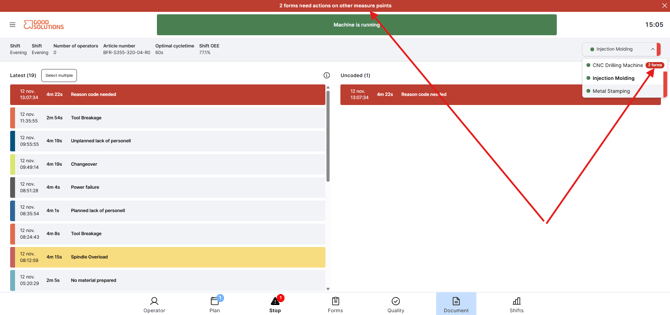
Important: A triggered Form does not automatically open for completion. The Operator must click the Form in the pop-up to accept and launch it.
This allows Operators to see which Forms require attention and select the appropriate Form to complete.
Step 3: Accept and open the Form
To start a triggered Form:
- Find the Form in the pop-up window.
- Click the Form you want to complete.
- The Form opens in Operator Tools.
- Follow the instructions and complete the required questions.
You can also access Forms requiring attention through the Forms section in Operator Tools.
A notification indicator on the Forms navigation item shows when Forms require attention.
Tip: Check the Forms notification regularly to make sure important inspections and procedures are not missed.
Step 4: Start a Form manually
Some Forms are available for Operators to start whenever needed, without waiting for a production event.
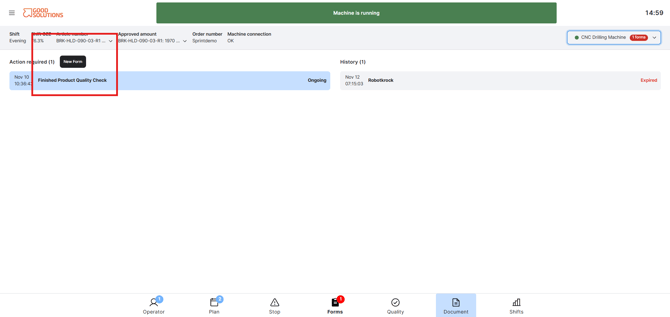
To start a Form manually:
- Select the relevant Measure Point.
- Navigate to Forms in Operator Tools.
- Find the Form you want to complete among the available Forms.
- Select the Form to open it.
- Complete the questions and submit the Form.
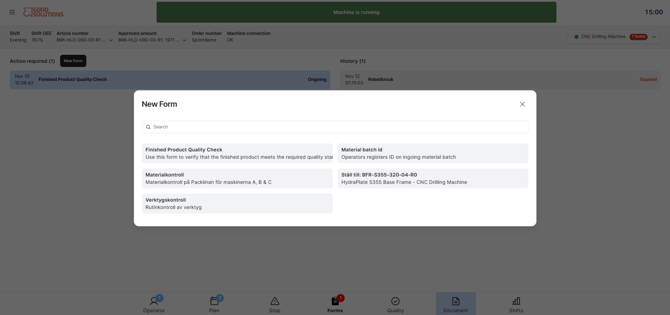
Only Forms that have been published and configured for manual start at the selected Measure Point are available.
For example, an Operator might manually start a Quality Inspection Form after noticing a potential product defect, even if no automatic Trigger has occurred.
Step 5: Complete the Form
Once the Form is open, answer the questions and follow the instructions provided.
Depending on how the Form has been configured, you may encounter:
- Text fields: Enter comments, observations, or other written information.
- Number fields: Enter quantities, measurements, or other numerical values.
- True / False questions: Confirm whether a condition has been met.
- Multiple Choice questions: Select an answer from predefined options.
- Instructions: Read additional guidance explaining how to perform a check or inspection.
Some questions may be mandatory, meaning you must provide an answer before submitting the Form.
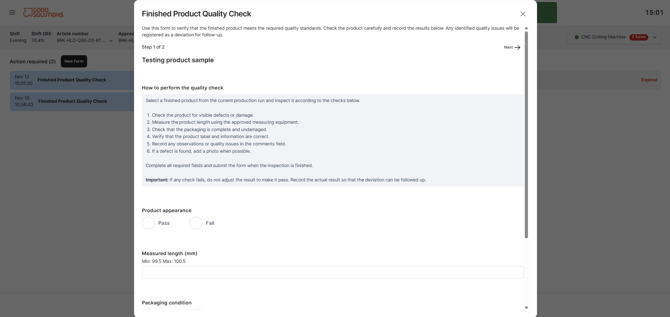
Navigating multi-page Forms
If the Form contains multiple pages, navigate between them to complete the different sections.
For example, a Machine Startup Checklist might contain separate pages for Safety Checks, Machine Inspection, and Production Readiness.
Follow the sequence of the Form and complete the required questions on each page.
Step 6: Review deviations
Some Forms contain Deviation Rules that identify answers outside expected conditions.
For example:
- A measured temperature is outside the acceptable range.
- A safety check is answered with No.
When an answer meets a configured deviation condition, Good Solutions identifies it as a deviation.
Make sure you provide accurate answers, even when they indicate a problem.
Deviations help Production Managers identify issues and follow up on quality, safety, and production performance.
Step 7: Submit the completed Form
When you have answered all required questions:
- Review your answers.
- Make sure all mandatory fields have been completed.
- Enter your initials if requested.
- Submit the Form.
Once submitted, the Form is stored in Good Solutions together with its answers and any identified deviations.
The Form receives one of the following completion statuses:
- Completed: The Form was completed without any deviations.
- Completed with Deviation: The Form was completed and contains one or more deviations.
Completed Forms can be reviewed through the Forms Report.
Understanding Form statuses
Automatically triggered Forms can have different statuses depending on their progress and Lifecycle settings.
| Status | Description |
|---|---|
| Ongoing | The Form has been triggered and is waiting to be completed. |
| Delayed | The Form has not been completed within the expected time but can still be completed. |
| Expired | The Form has passed its allowed completion period and can no longer be completed. |
| Done | The Form has been submitted. |
The timing for Delayed and Expired statuses is configured through the Form Trigger's Lifecycle settings.
Tips for using Forms in Operator Tools
- Check Form notifications: Pay attention to Forms that appear automatically when production events occur.
- Complete Forms promptly: Time-sensitive Forms may become delayed or expire.
- Follow instructions: Read any guidance provided before answering questions.
- Enter accurate information: Your answers contribute to production quality and continuous improvement.
- Report deviations: Record actual results, even when they are outside acceptable limits.
- Use manual Forms when needed: Start additional inspections or checks whenever the situation requires them.